
Design
App Icon Generator 1.7.0
DesignUpdated
| Requirement | On file |
|---|---|
| macOS | macOS 14 or later |
| CPU | Apple Silicon, Intel 64-bit |
| Download | 8 MB |
Export an App Icon Set in Four Steps
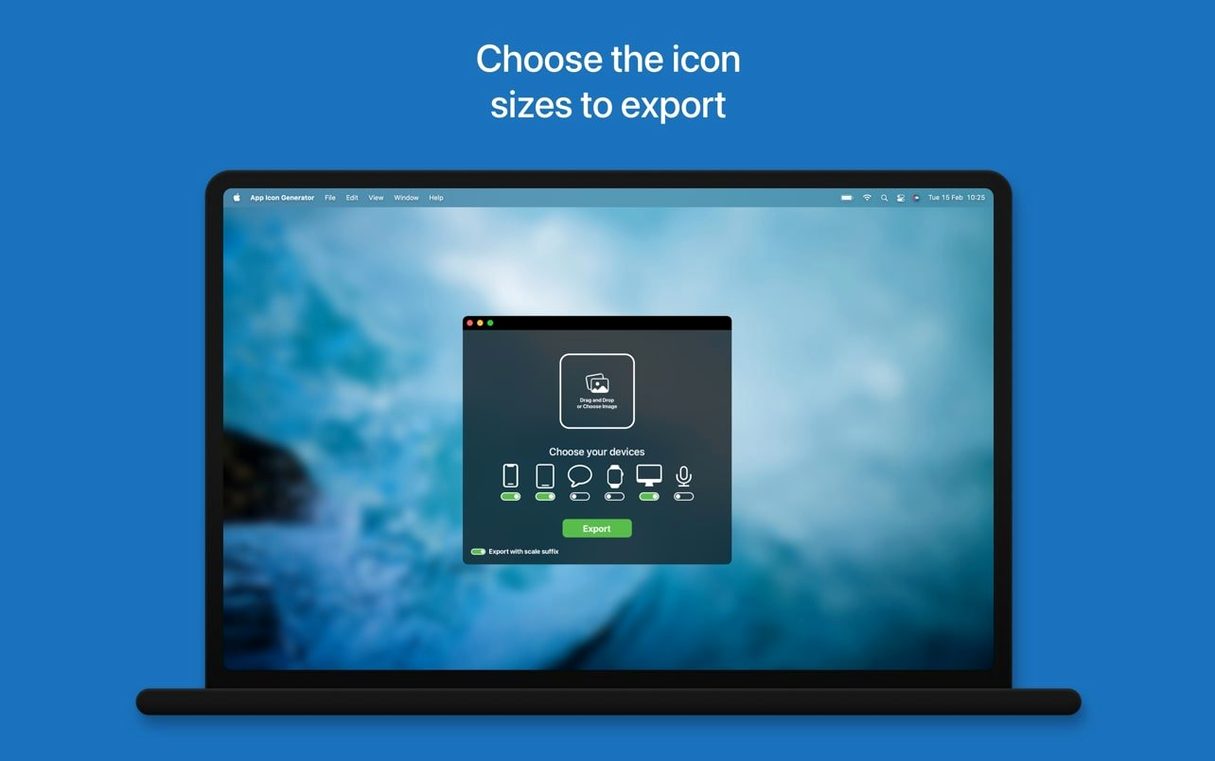
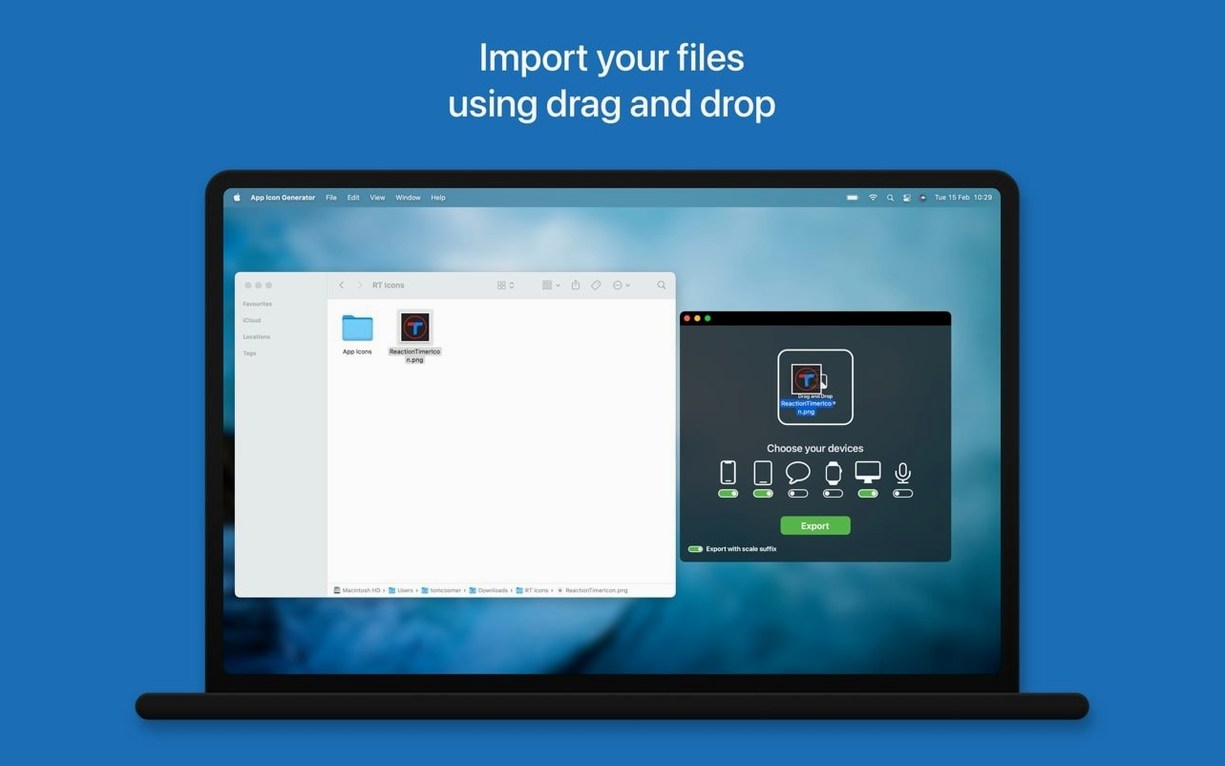
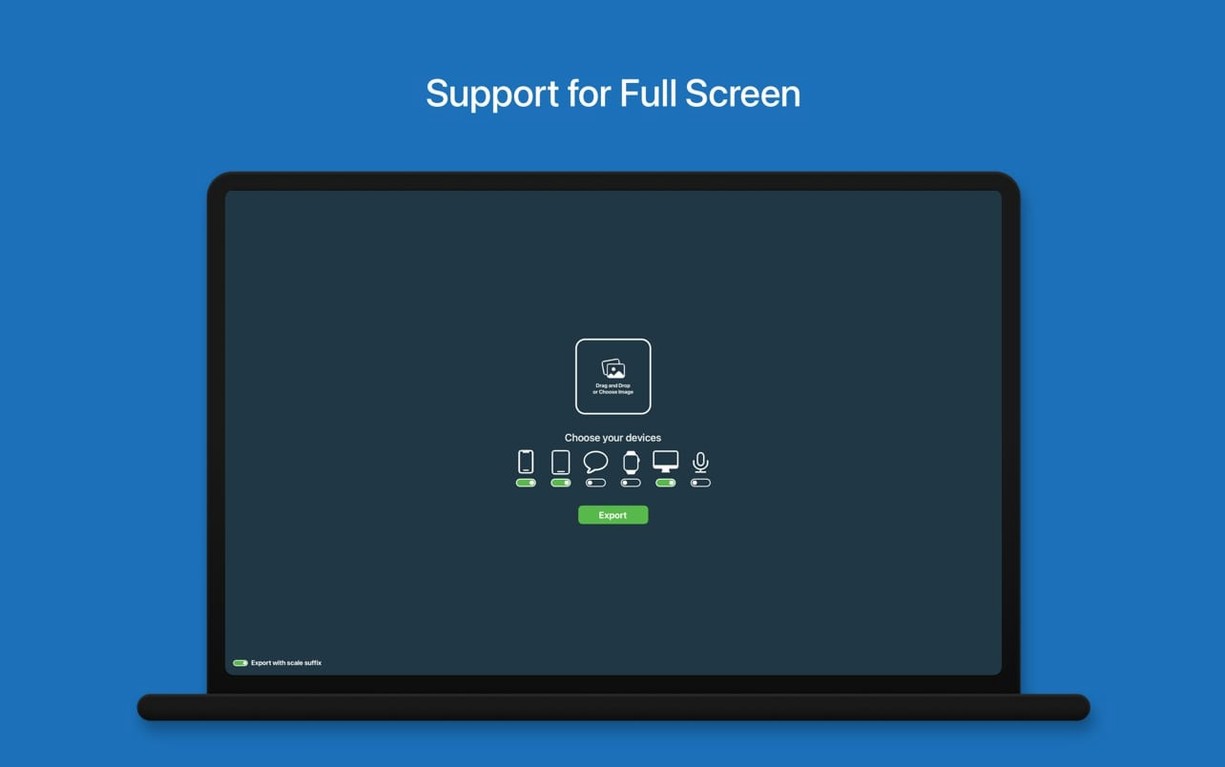
- Open App Icon Generator and drag a square source image onto the drop zone.
- Select the target platforms — iOS, macOS, watchOS, iMessage apps, or other — and confirm the sizes you need.
- Choose to export as an App Icon Set for Xcode asset catalogs. The app automatically converts each size to PNG and saves them in a folder named by dimension.
- Click Export. The result is a ready-to-import folder of correctly sized icons.
That is the whole workflow. The app handles the conversion and naming; you pick the platforms. Version 1.7.0 adds support for the latest icon sizes in Xcode 16 and improves iOS 18 compatibility. No manual resizing, no renaming files one by one.
What Changed in Version 1.7.0
If you have used an earlier version, the main difference in 1.7.0 is the updated size table. Xcode 16 introduced new icon slots, and iOS 18 refined its own set. The app now outputs the correct dimensions for both. You might notice, for example, that the exported folder contains a few more PNG files than before — those are the new sizes the tool adds automatically.
The workflow itself has not shifted. Drag, select, export. But the output matches current Apple specs. If your project targets Xcode 16 or iOS 18, version 1.7.0 saves you from hunting down the latest size requirements yourself.
A Typical Working Session
I had a macOS app that needed a proper icon set. The source image was a 1024×1024 PNG — a square logo on a transparent background. I launched App Icon Generator, and the drop zone appeared centred in the window. No splash screen, no tour. Straight to the task.
- I dragged the logo file onto the drop zone. The interface confirmed it was loaded and showed the image preview.
- Under the platform selector, I ticked macOS and iOS. The app displayed the standard sizes for each platform: 512×512, 256×256, 128×128, 64×64, 48×48, 32×32, and 16×16 for macOS; iOS had a slightly different set with the new iOS 18 dimensions.
- I checked the option to export as an App Icon Set for Xcode asset catalogs. The app generated the correct file names for each slot.
- I clicked Export. The tool created a folder named
App Icon Seton my desktop. Inside, each size had its own subfolder:512x512,256x256, and so on. Every PNG was named after its slot, like[email]icon_512x512.png[/email].
The whole process took about forty seconds. The naming convention matched what Xcode expects, so importing the folder into the asset catalogue was immediate. No file renaming, no dimension correction.
Common Snags and How to Sort Them
Source Image Is Not Square
App Icon Generator expects a square image. If you drag a rectangle, the app may still accept it, but the output scaling can look off. Crop your image to a square aspect ratio before importing. A 1024×1024 or 512×512 base works well.
Export Folder Is Empty
This happened once when I selected no platforms. The app does not warn you — it just exports nothing. Make sure at least one platform is checked before clicking Export. If the folder appears empty, check your selections and try again.
Unexpected File Names
The app names files according to the slot they fill. If you see names that do not match your project, you may have selected a platform you did not intend. For example, selecting watchOS along with iOS adds watch-face sizes to the set. Check the platform list before exporting.
Gatekeeper Block on First Install
On macOS 14, the first launch may trigger a Gatekeeper warning. The install steps address this: mount the disk image, run Open Gatekeeper friendly in Terminal, press Enter, then drag the app into the Applications folder. After that, launch normally. The app runs without further prompts.
Questions People Ask Before Installing
Does It Work on Apple Silicon?
Yes. Version 1.7.0 runs on both ARM (Apple Silicon) and x86 (64-bit Intel) architectures. I use it on an M2 MacBook Pro without any compatibility issues. The installer includes support for both architectures.
Can I Export Icons for an Existing Xcode Project?
Yes. The App Icon Set export option creates a folder structure that Xcode recognises. You can drop it into your project's asset catalogue or import it via the Xcode interface. The naming and dimensions match what Xcode 16 expects.
Do I Need to Resize Images Manually?
No. The app handles all resizing. You supply one square source image, and the tool scales it to every size required by your selected platforms. The output is always PNG, regardless of the source format. If your source is JPEG or TIFF, convert it to a square PNG first — the app works best with a clean, transparent-background file.
What Happens to the Original Image?
Nothing. The app reads the source image but does not modify it. All resizing and conversion happens in memory and writes to the export folder. Your original file stays untouched on disk.
Is There a Limit on Image Size?
Not that I have found. The app accepts any square image within reason — a 4096×4096 PNG works, though the export may take a few seconds longer. For normal use, a 1024×1024 or 512×512 source is sufficient. The tool scales down to the smallest platform sizes automatically.
- Xcode 16 icon sizes — Added support for the latest icon size requirements.
- iOS 18 — Improved compatibility with iOS 18 icon specifications.
- macOS 14 or later
- Intel or Apple Silicon
Questions on file
Does the app support exporting icons for Xcode asset catalogs?
Yes, it exports icons as an App Icon Set that you can import directly into Xcode asset catalogs.
What file format are exported icons saved in?
All exported icons are automatically converted to PNG and saved in folders named by size.
Sign in · Create an account to add a field note.
No field notes yet. A measurement, a version, a machine — they appear after moderation.