Office
DjVu Reader Pro 2.7.2
OfficeUpdated
| Requirement | On file |
|---|---|
| macOS | macOS 10.15 or later |
| CPU | Apple Silicon, Intel 64-bit |
| Download | 26 MB |
Version 2.7.2 ships with a single file-format focus. It opens DjVu documents and nothing else, which keeps the tool lean on both ARM and 64-bit Intel Macs running macOS 10.15 or later.
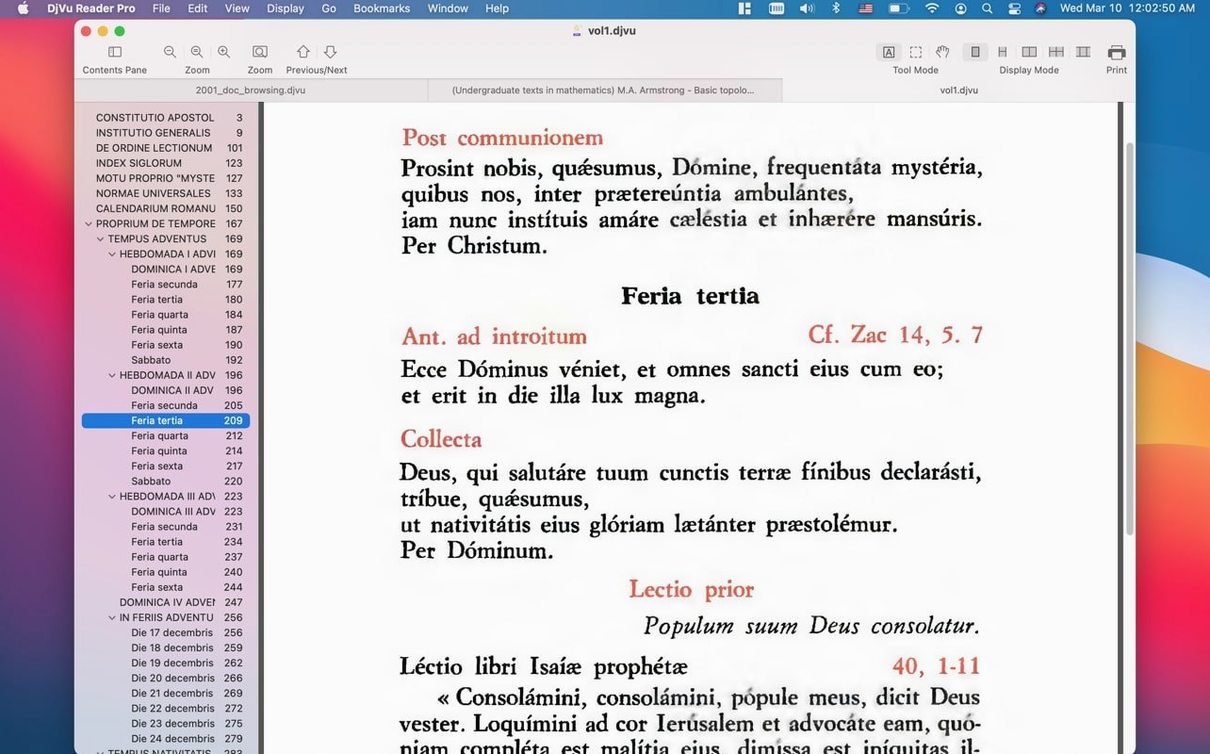
Page turns, text search, and zoom controls tuned for scans
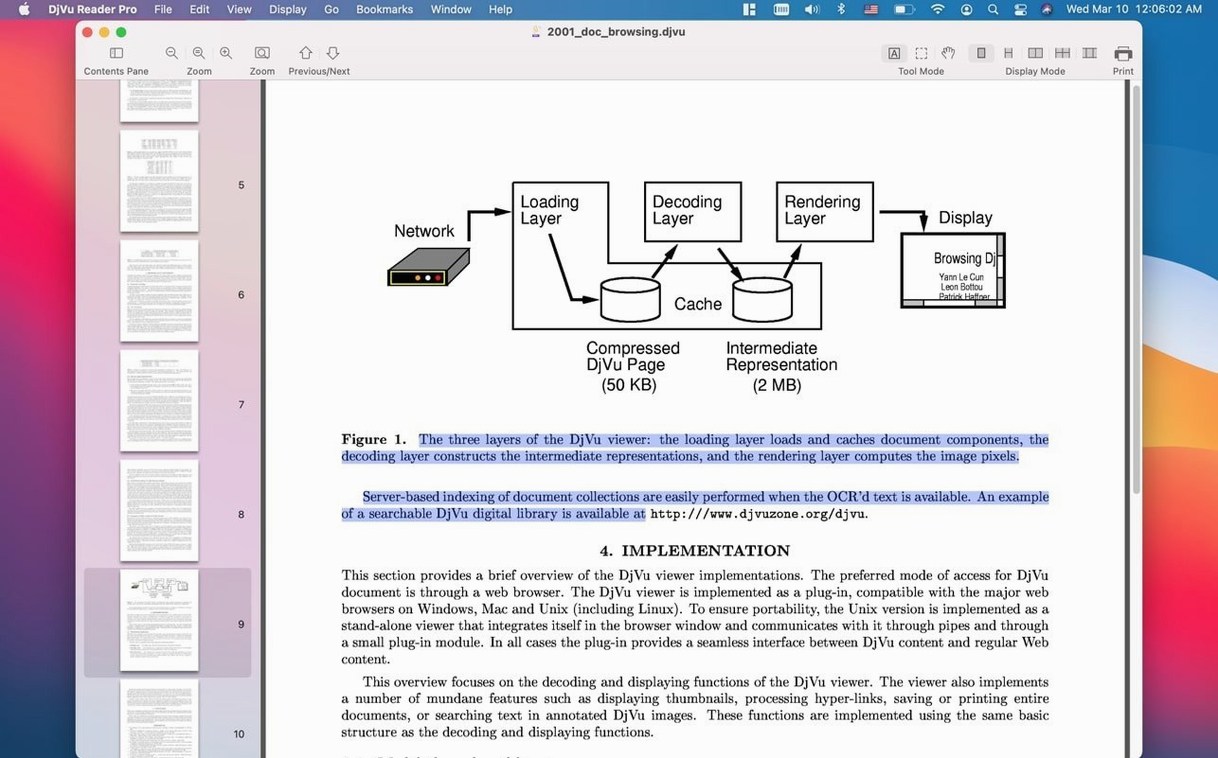
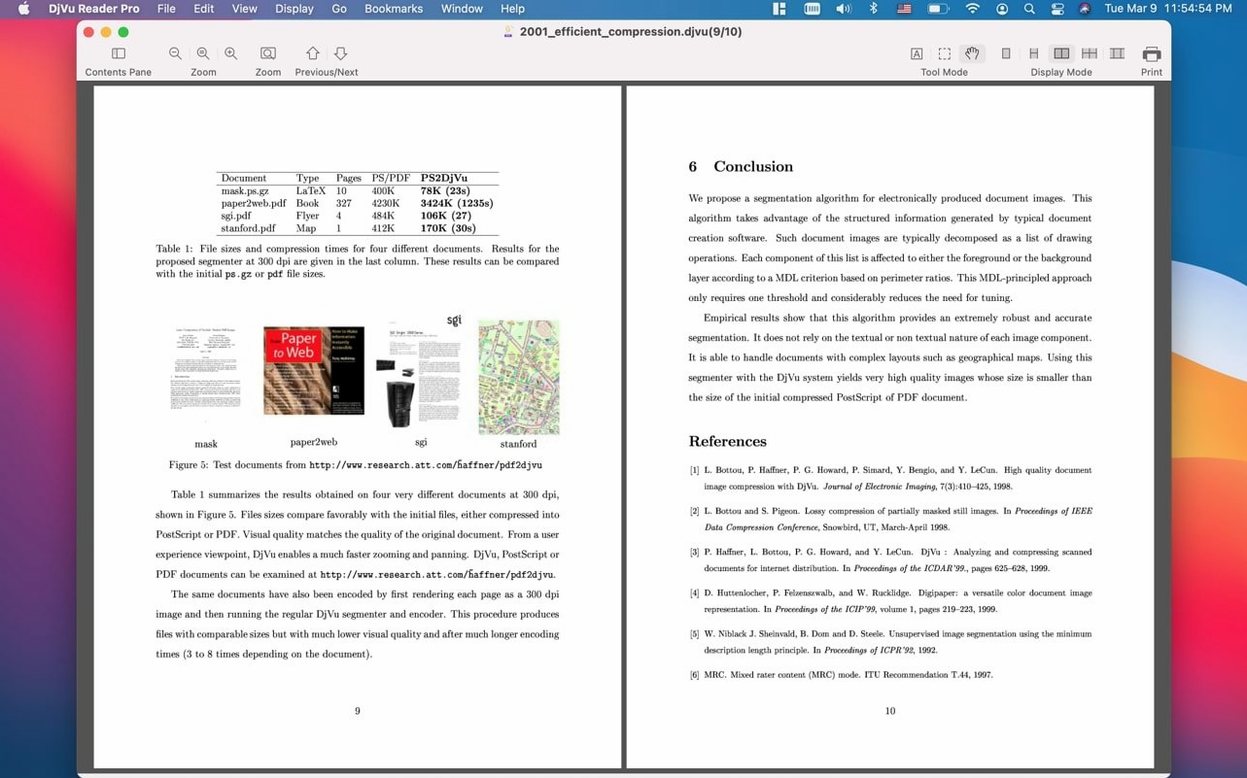
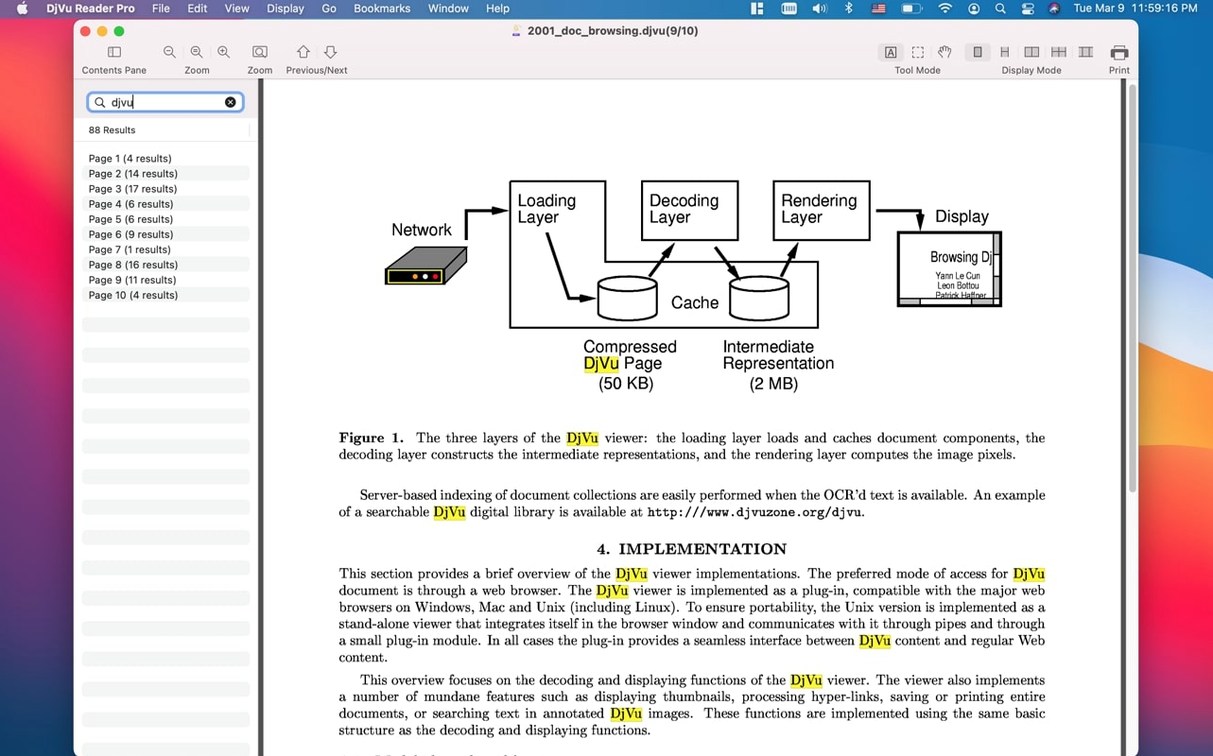
Fast page turning is the core design choice here. The view scale controls let you zoom a scanned page to exact text size, and the Find Pane searches across page boundaries without pre-indexing. Reading settings cover standard adjustments — background tint, continuous scroll toggling — while user bookmarks persist between sessions. Printing is supported directly from the file menu, so a reference page can land on paper without export steps.
A single-format viewer with no editing or export
The app still handles one job: displaying DjVu files. There is no editing, no annotation layer, and no export to PDF or image formats. The interface remains in Russian and English. For readers who value a dedicated DjVu viewer over a multi-format library, that narrow scope is the point.
Blank window fix depends on OCR, not the app
A blank window after opening a DjVu file usually points to a missing text layer in the source document — the file contains only scanned images. The fix is not in the app; the original scan needs OCR processing before it reaches DjVu Reader Pro. If the file opens but search returns zero results, check the Find Pane: matches only work on documents where the text layer was embedded during creation.
Thumbnail navigation can stall on very large files — think 300-page manuals with high-resolution page scans. The thumbnail strip redraws progressively, so scrolling while thumbnails are still loading sometimes produces a brief white flash. Waiting two seconds after opening solves this. For consistently large libraries, storing documents in folders of roughly 50 files each keeps the library pane responsive.
When the app refuses to launch on an M-series Mac, the cause is almost always Gatekeeper blocking an un-notarised binary. The install step in the disk image — pressing Enter in Terminal — handles this once. If you skip that step and drag the app straight to Applications, macOS will show the “damaged” warning. Running the Terminal command afterwards clears it, no reinstall needed.
Print scaling occasionally clips margins on A4 paper when the DjVu page uses a non-standard aspect ratio. The workaround: set the view scale to “Fit Width” before printing, and the print dialog inherits that geometry. The app prints what the viewport shows, so exact preview is the most reliable way to avoid cut-off edges.
Workflow: extracting a reference from a multi-volume DjVu set
Suppose you have three DjVu volumes of a technical handbook — roughly 1800 pages total. You need page 427 from volume two as a clean printout, and you need three other pages bookmarked for later. Here is one straight-line path through the app.
- Drag all three DjVu files into the library pane at once. The app lists them by filename; no renaming or metadata import happens, so name your files clearly before adding them.
- Double-click volume two to open it. The main view loads with the first page visible. Hit
Cmd+Gto bring up the page-jump field and type 427. The view jumps directly to that page in under a second on a modern Mac. - Set the view scale to “Fit Width” so the page fills the window horizontally. Open the Find Pane with
Cmd+Fand type a key term from the page — a part number or a heading fragment — to confirm the text layer is searchable. If the term highlights, you know the page will print with selectable text in the PDF stream macOS generates during printing. - Press
Cmd+P. In the print dialog, pick “Save as PDF” from the PDF button in the lower-left corner of the macOS print panel. Name the output file with the page number and the topic — say, “427_calibration_procedure.pdf”. The file lands on your desktop. This step produces a single-page PDF without altering the original DjVu. - Back in the app, hit
Cmd+Dto bookmark the page. A bookmark entry appears in the sidebar with a default label; double-click it and rename it to “Calibration procedure”. Repeat for the other three pages you need. Bookmarks survive quitting and relaunching the app, pinned to the specific DjVu file. - After finishing, close volume two. The library pane still shows all three volumes. Next time you need a bookmarked page, open the file and click the bookmark — no searching required.
This workflow leans on the app’s three strongest features: direct page jumping, text-layer search verification, and persistent bookmarks. It skips thumbnail navigation entirely because thumbnails slow down on files above roughly 200 pages. The PDF output step uses macOS print services, so the resulting file carries no DjVu metadata and opens in any PDF reader.
DRM-protected DjVu files will not open
Does it handle DjVu files with DRM or copy protection? No. The app reads unencrypted DjVu documents only. If a file was wrapped in a rights-management layer by the publisher, DjVu Reader Pro will either show a blank page or refuse to open it outright. The file format itself supports DRM encoding, but this viewer does not include a decryption module.
What happens with multi-layer DjVu files — the kind where text, foreground and background are separate? The app composites all three layers into the single image you see in the window. The text layer remains searchable separately via the Find Pane, but you cannot toggle layers on or off. For archival work where you need to inspect the background layer alone, you would need a different tool.
Can I use it without the Terminal step? On Intel Macs running macOS 10.15 through 11, you might get lucky — Apple’s notarisation checks were less strict in those versions. On any Apple Silicon Mac or on macOS 12 and later, the Terminal command is effectively mandatory. It is a one-time step per installation.
Is the “djvu reader pro crack mac” version different from what is described here? The build distributed with TNT team activation is identical in feature set to the Mac App Store version 2.7.2. The activation method changes nothing about file support, search behaviour, or bookmark storage. What you read in this article matches that build exactly.
Does the library feature remember files across sessions? Yes, but with one important constraint: if you move a DjVu file to a different folder on your Mac, the library entry goes stale. The app stores file paths, not file IDs. Re-adding the moved file fixes this, though you will lose any bookmarks tied to the old path. Keep your DjVu folders stable once you have bookmarked pages inside them.
- macOS 10.15 or later
- Apple Silicon or Intel 64-bit processor
Questions on file
Can DjVu Reader Pro edit or convert DjVu files?
No. Version 2.7.2 is a viewer only — it opens and reads DjVu documents, but has no editing, annotation or export tools.
Does the Find Pane search inside scanned DjVu pages?
It searches the text layer embedded in the DjVu file. If the document was scanned without OCR, the Find Pane will not return results.
Sign in · Create an account to add a field note.
No field notes yet. A measurement, a version, a machine — they appear after moderation.