Office
GoodNotes 5.9.8
OfficeUpdated
| Requirement | On file |
|---|---|
| macOS | macOS 10.15 or later |
| CPU | Apple Silicon, Intel 64-bit |
| Download | 442 MB |
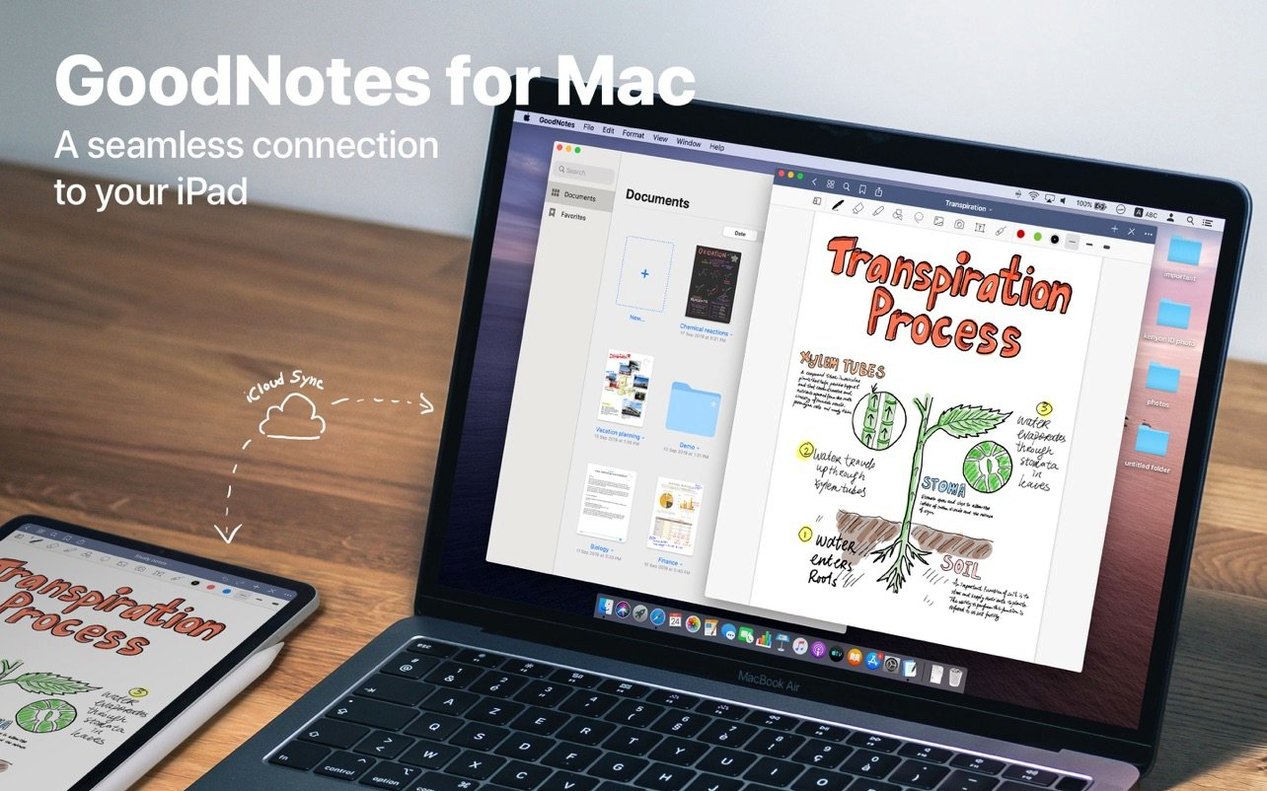
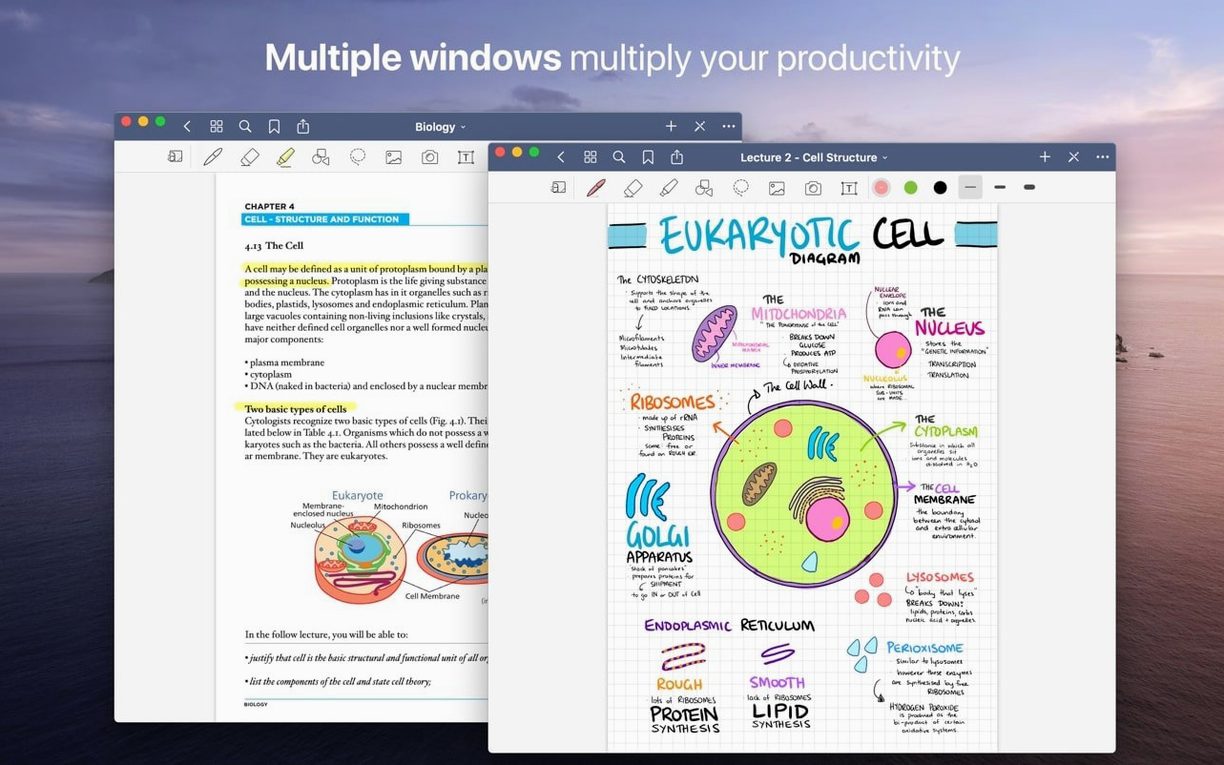
Students compiling lecture materials, researchers annotating papers, and anyone who prefers pen-and-paper thinking with digital convenience will find a familiar tool in GoodNotes on Mac. The macOS version mirrors the iPad experience, letting you view, edit and organise your documents on a larger screen.
Document creation and editing
GoodNotes 5 on Mac handles text, handwritten notes and drawings within the same document. Handwriting can be moved, rotated, resized or recoloured after the fact — no need to erase and rewrite. The eraser tool gives you two modes: erase an entire stroke in one tap, or clean up only parts of a stroke. A separate setting lets you target marker ink alone, leaving your pen notes untouched. You can also build a custom table of contents that links to specific pages, making navigation inside longer notebooks practical rather than a scroll hunt.
Organisation and file handling
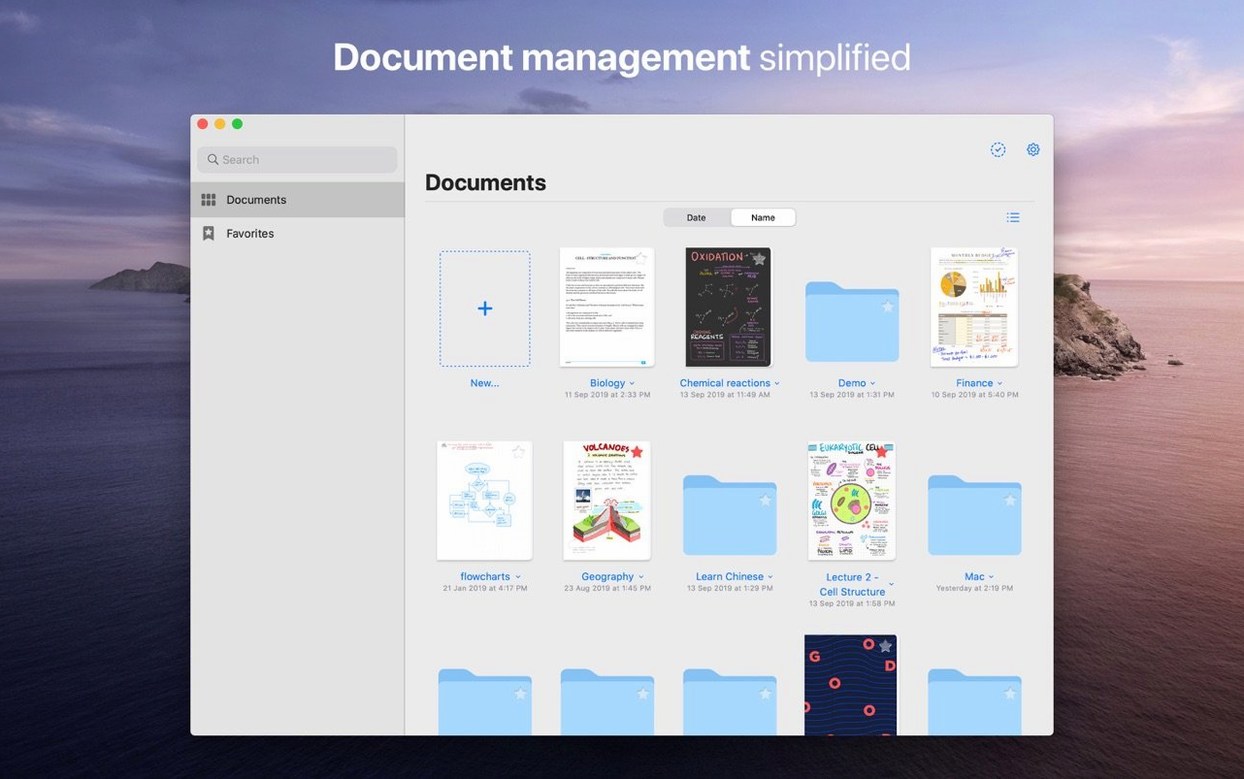
Documents live in a folder and subfolder structure, so a semester’s worth of lecture notes stays grouped without third-party file management. Adding PDFs or images from your Mac’s hard drive works by drag and drop. The current version — 5.9.8 — requires macOS 10.15 or later and runs on both Intel and Apple Silicon Macs. Interface languages cover Russian, English, German, Spanish, Italian, Traditional and Simplified Chinese, Korean, Dutch, Portuguese, Thai, Turkish, French and Japanese.
Default Pen Pressure and Palm Rejection Tweaks
A fresh install of GoodNotes 5.9.8 ships with defaults that suit general use, but a few tweaks in Preferences make the Mac experience noticeably smoother. Open GoodNotes > Preferences from the menu bar and work through these early.
Under Document Editing, switch Zoom Window Default to Auto-Advance if you write with a stylus or trackpad. The window scrolls automatically as you reach the right margin, so you never pause to reposition. When typing with a keyboard instead, turn on Return key moves to next line in text boxes — the default behaviour drops you out of the text box entirely, which catches newcomers off guard.
In the Writing & Pen tab, disable Touch to draw if you work on a Mac without a drawing tablet. The setting interprets any trackpad contact as ink, which turns casual two-finger scrolling into accidental scribbles. With it off, you still draw with a click-and-drag, and normal gestures stay intact. While you are there, set Palm Rejection to High if you use a Wacom or similar tablet — the Mac build reads palm input differently than iPadOS, and the default setting can leave stray marks near the edges of the active area.
Drag a Thumbnail Straight onto the Finder or Mail
Several time-savers sit just out of sight in GoodNotes for Mac, often because the interface inherits them from the iPad version without much desktop-specific signposting.
Dragging a page thumbnail from the sidebar directly onto the Finder or a Mail compose window exports that single page as a PDF, no dialog box needed. The same action works with a selection of pages — highlight them in the thumbnail strip, then drag. For full-document exports, hold Option while dragging any thumbnail, and GoodNotes bundles the entire notebook.
The Shapes tool gains precision with the Option key. Draw a rough circle or rectangle, hold Option before lifting your cursor, and the shape snaps from its centre point outward, which is handy when annotating diagrams where alignment matters. Holding Shift locks the aspect ratio on rectangles or constrains lines to 15-degree increments.
If you use the eraser frequently, double-press the E key — it toggles between Erase Entire Stroke and Erase Parts of Stroke without opening the tool palette. The L key cycles the lasso tool through its freehand and rectangular modes. These shortcuts work across all GoodNotes 5 installations, including the goodnotes 5 download mac builds distributed outside the App Store.
Favourites deserve more attention than they usually get. Beyond bookmarking individual pages, you can drag a whole folder or subfolder into the Favourites sidebar. Tapping it later opens that folder directly, skipping the document browser. If your structure runs deep — say, Semester > Biology > Lectures — this saves three or four clicks every session.
Right-Click Any PDF to Import into a Notebook
GoodNotes on Mac integrates with the system in ways that go beyond the obvious iCloud sync. The app registers itself as a PDF handler, so you can right-click any PDF in Finder and choose Open With > GoodNotes. The file imports as a new document rather than opening in a temporary viewer, which means annotations stick permanently to your library. If you download lecture slides or instruction manuals regularly, setting GoodNotes as the default PDF reader in Finder’s Get Info panel cuts out an import step every time.
iCloud sync ties the Mac version to GoodNotes 5 on iPad and iPhone — a single library that updates within seconds on a decent connection. The sync engine uses iCloud Drive under the hood, so no separate account is needed. Changes made with the goodnotes 5 download ipad build appear on the Mac and vice versa. Bear in mind that the sync is document-level, not real-time collaborative. Two devices editing the same notebook simultaneously will produce a conflict copy rather than merged changes.
For moving data out, drag-and-drop covers most workflows. Drag a page to the Desktop and you get a PDF. Drag a handwriting selection into Apple Notes or Pages, and it lands as a PNG with a transparent background. The export palette under File > Export adds options for GoodNotes format (for backups), editable PDF, and image formats including JPEG. If you rely on Spotlight, note that GoodNotes does not index document text automatically — only PDF text layers and typed text boxes appear in Spotlight results, not handwritten content.
Those searching for a goodnotes mac download outside the App Store often look for the disk image route. The goodnotes dmg installs by dragging the app icon to the Applications folder alias, after which Launchpad picks it up. This version runs alongside any existing App Store installation without conflict, though iCloud sync should be signed in from only one build at a time to avoid duplication glitches.
Silent iCloud Sync Failures After a Fresh Install
The most frequent setup step after a GoodNotes torrent or direct download is ensuring iCloud sync works correctly. If notebooks stop appearing across devices, open System Settings > Apple ID > iCloud Drive and confirm GoodNotes is toggled on under Apps Syncing to iCloud Drive. The app itself has no sync indicator beyond a small spinner in the document browser; if you see nothing changing for more than a minute, toggle iCloud off and on inside GoodNotes > Preferences > iCloud, then restart the app.
Handwriting lag on Apple Silicon Macs is usually a display scaling issue. The app defaults to a retina resolution that can feel sluggish on external 4K monitors. Go to System Settings > Displays and try a non-scaled resolution or a lower refresh rate. For Intel Macs, closing the page thumbnail sidebar while writing frees enough GPU headroom for smooth ink strokes, especially on machines with integrated graphics.
Imported PDFs occasionally lose their hyperlinks after annotation. The link data stays intact in the original file but GoodNotes renders annotations as a flat layer above the PDF. To access live hyperlinks, switch to the Read tool (the hand icon) rather than the pen or text tool — hyperlinks only respond when the reading mode is active.
If a notebook grows beyond a few hundred pages and scrolling becomes jerky, splitting it helps. Duplicate the document, delete the first half of pages from one copy and the second half from the other, then link them by adding a page with a custom outline entry pointing to the sibling notebook. GoodNotes has no built-in multi-notebook linking, but the outline workaround keeps navigation quick without bloating a single file.
Lasso selections that refuse to pick up text boxes usually mean the text box was placed on a different layer. GoodNotes treats typed text, handwriting, and images as separate element types. Tap the lasso tool icon and check that Text Boxes is ticked in the tool options popover. The same popover controls whether the lasso grabs images, handwriting, or both, and missing a checkbox is the culprit in most selection complaints.
- macOS 10.15 or later
- Apple Silicon or Intel 64‑bit
Questions on file
Does the Mac version of GoodNotes let me erase only highlighter marks without affecting my pen notes?
Yes, the eraser has an option that targets marker ink alone, leaving handwritten pen notes untouched.
Sign in · Create an account to add a field note.
No field notes yet. A measurement, a version, a machine — they appear after moderation.