
Photo
Photo Mechanic 2025.1.8239
PhotoUpdated
| Requirement | On file |
|---|---|
| macOS | macOS 13 or later |
| CPU | Apple Silicon |
| Download | 64 MB |
The Variable Rename dialog opens, and a string like Bali_{datesort}_{timesort} turns hundreds of files with cryptic camera names into a chronologically ordered shoot in moments. That is where the utility of Photo Mechanic lives — not in altering pixels, but in handling the data around them at a speed raw converters cannot match.
Ingest with templates — Copy files from a card, apply a rename string, add global metadata like a copyright notice and creator fields, and save a second copy to a backup location in one pass. The Ingest dialogue lets you build a preset that runs every import exactly the same way.
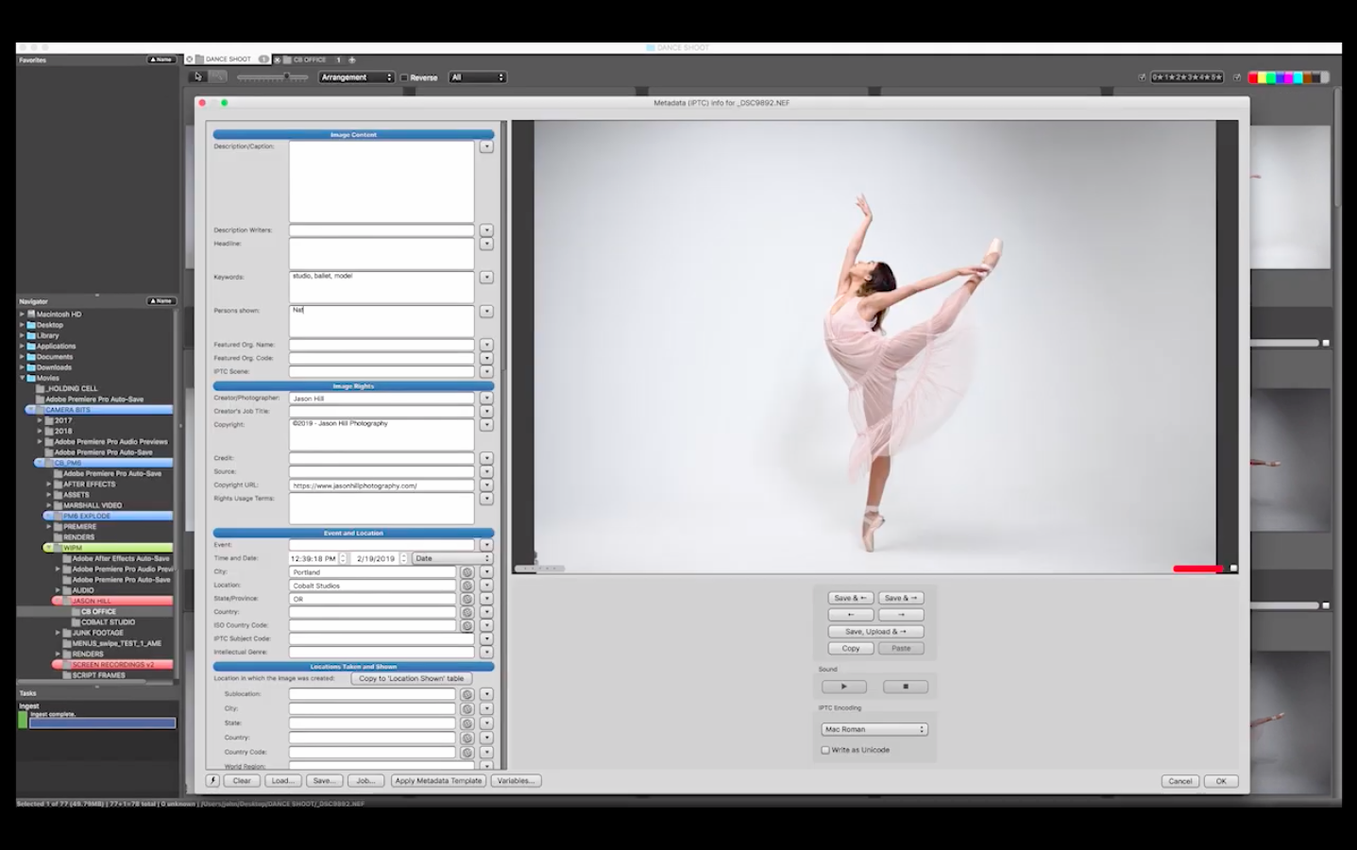
Metadata (IPTC) editing — Write or edit description, title, keywords, event, shooting location, and contact information. The IPTC Stationery Pad applies a block of saved metadata to a single image or a batch of thousands. Variables pull EXIF data into captions automatically.
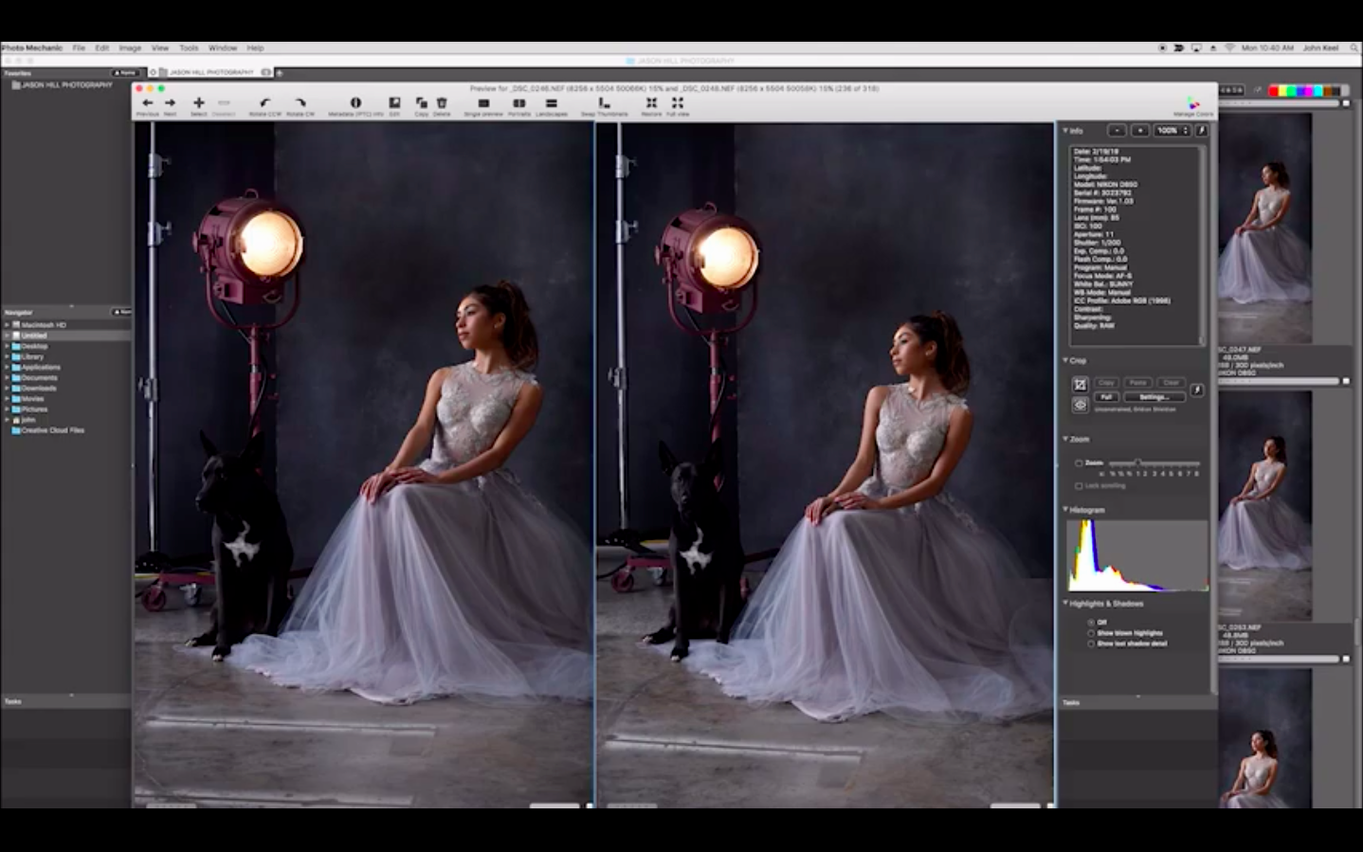
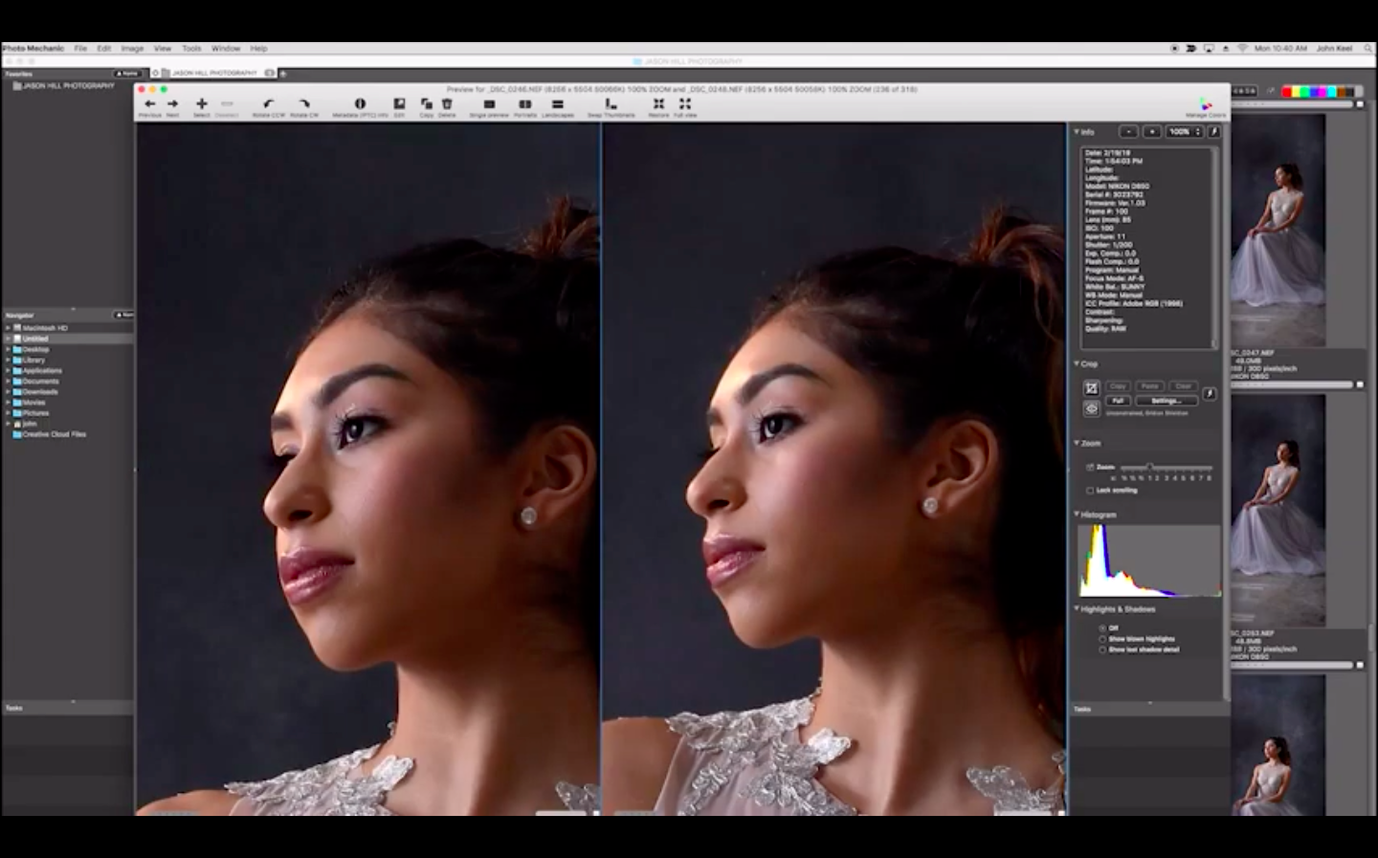
EXIF inspection — View the full technical payload: lens, shooting parameters, camera model, focus mode, white balance, and flash status. The Info panel exposes fields that Apple’s Finder hides.
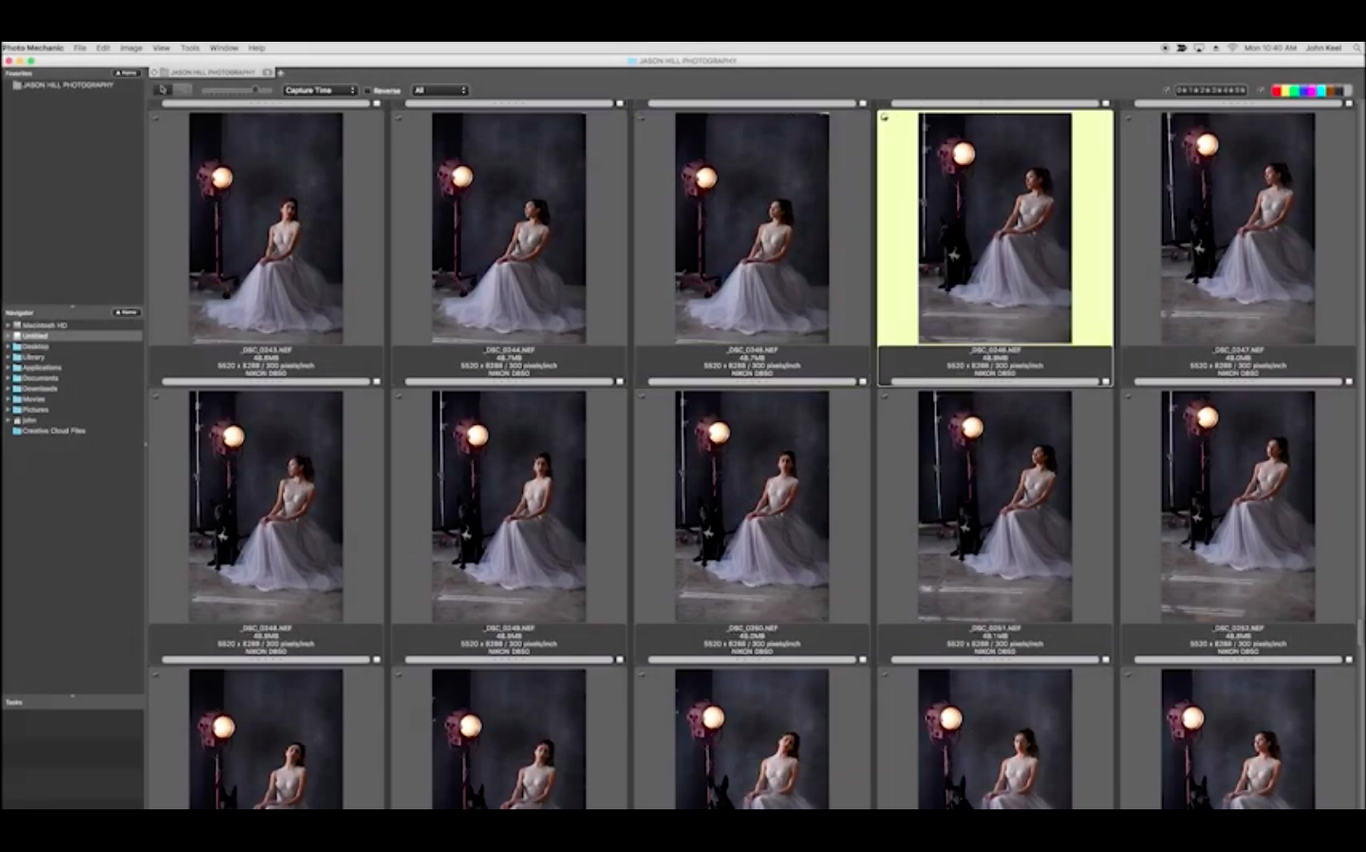
Rating and triage — Tag, colour-class, and star-rate images with single keystrokes. A common workflow: ingest everything, mark keepers with a colour label, then filter the contact sheet to show only selects before editing.
Export and delivery — Rename and resize groups of photos, optimise JPEGs for web use, or upload directly to an FTP server from within the app. Date and time-created adjustments let you correct clock offsets between bodies before files reach an editor.
11,000 frames, a 45‑minute deadline, and no raw converter allowed
She returns to the media centre with three 128 GB cards, roughly 11 000 frames across two bodies, shot over six hours. The first deadline drops in 45 minutes. Opening the card in a raw converter is not an option — generating previews alone would eat 15 of those minutes. Instead, she mounts the card, opens an Ingest preset named RaceDay_JPEG, and Photo Mechanic renders JPEG previews from the embedded camera data as fast as the card reader can deliver them. Within four minutes she is scrolling a full-screen contact sheet, tapping the + key to tag the podium shot, the crash sequence, and a handful of pit-lane portraits. The IPTC Stationery Pad stamps her name, agency, event, and copyright into all tagged files in one pass, then the FTP uploader sends them while she starts on the second card. The raw converter never opens until the selects are already filed.
Small conveniences that compound over a season
Several shortcuts sit just outside the obvious feature list, and experienced users lean on them heavily.
- Spotlight-sized variable picker. Hitting
Cmd+Option+Vwhile the cursor sits inside any text field — a rename string, the Stationery Pad, an FTP template — opens a floating list of every variable the app knows. No memorising{datesort}syntax required. - Live preview of rename patterns. The Rename dialogue shows a sample filename below the pattern field and updates it in real time as you type. A typo that would produce an empty string is visible before you commit it.
- Colour-class and star filters stack silently. Filtering a contact sheet to show only red-tagged images with three stars or more is a two-click operation in the toolbar, and the filter persists when you jump between folders. It also respects the sort order you set, so a chronological pass remains chronological.
- Snapshots of the workspace. The contact sheet layout — thumbnail size, visible panels, sort column, filter state — can be saved as a named snapshot and recalled with a keyboard shortcut. A wedding photographer might switch between a tight portrait layout and a wide event-layout snapshot mid-shoot.
- Drag-and-drop FTP queuing. Dragging a set of thumbnails onto an FTP connection entry in the Navigator panel queues only those files for upload, bypassing the full export dialogue. A news desk gets the goal celebration while the rest of the match is still being tagged.
Workflow: culling a 2 500-frame wedding gallery to 120 client selects
A wedding shooter returns with one card, roughly 2 500 frames covering getting-ready, ceremony, group formals, and the first hour of the reception. The goal is to deliver a proof gallery of 100–130 images within 48 hours. The following steps rely on Photo Mechanic alone, before any raw processing.
- Ingest with a safety copy. Insert the card. In the Ingest dialogue, select a primary destination folder named
/Weddings/2025-06-Smith. Enable Copy to secondary destination pointing to an external backup drive. Apply a global rename pattern:SmithWedding_{seqn:4}. Add base IPTC data — photographer name, copyright year, event name — via the Stationery Pad attached to the ingest. Start the copy. - First pass: colour-class selects. With the contact sheet open and thumbnails sized large enough to judge sharpness and expression, switch to full-screen preview. Step through every frame using the arrow keys; tap
1for a red tag on any image worth a second look. No star ratings yet — the goal is speed, reducing 2 500 to roughly 300–400 flagged frames in under 20 minutes. - Filter to red-tagged only. Back in the contact sheet, click the red colour-class filter in the toolbar. The sheet collapses from 2 500 thumbnails to approximately 350. Sort by capture time so the day reads in narrative order.
- Second pass: star ratings inside the narrowed set. Enter full-screen preview again. Now assign stars:
3for usable,4for strong,5for hero shots. Tap6to toggle the red tag off — those drop from the filtered view automatically. By the end, roughly 130 frames carry three stars or higher. - Group rename for client delivery context. Select all rated images, open the Rename dialogue, and apply a pattern like
SmithWedding_{hour24}{minute}{second}_{frame4}. Each filename now encodes the time of capture and the original frame number, making it easy for the couple to reference a specific image later. - Apply delivery metadata. Open the Stationery Pad, load a preset called ClientProof that contains keywords like wedding, outdoor, summer and fills the description field with a placeholder the client will replace. Apply to all selected images.
- Export small JPEGs for the online gallery. Use the Export dialogue to save JPEGs at 2 048 pixels on the long edge, quality 72, into a
/Proofsfolder. The original raw files remain untouched in the primary folder.
Total time from card insertion to a folder of proof JPEGs: typically under 35 minutes. The raws are rated, tagged, renamed, and metadata-stamped before Lightroom or Capture One ever sees them.
Standard ingest and metadata vs. a searchable catalogue
Do I need Photo Mechanic Plus, or is the standard version enough? The standard Photo Mechanic handles everything described here — ingest, culling, metadata, export — without a catalogue. Photo Mechanic Plus adds a searchable catalogue database for those who need to find images across multiple drives or network volumes without mounting them. If your library lives on one or two working drives and you know where your folders are, the standard version is the leaner tool.
Will it slow down when a folder contains 5 000 raw files? The app builds thumbnails from the JPEG preview embedded in each raw file rather than rendering from raw data. A folder of 5 000 files from a modern camera opens to a fully navigable contact sheet in roughly 10–15 seconds on Apple Silicon hardware; scrolling remains smooth because thumbnails are generated on demand only for what is visible on screen.
Does it write changes to my raw files? Ratings, colour classes, tags, and IPTC metadata are written either to XMP sidecar files or directly into the file header, depending on your preference setting. The raw image data itself is never altered. The preference panel offers a checkbox labelled Allow RAW file modifications (DNG, JPEG, TIFF, PSD only) that remains off by default.
Can I use it alongside Lightroom or Capture One without conflicts? If you set Photo Mechanic to write XMP sidecars and configure your raw processor to read XMP metadata on import, ratings and IPTC data come across cleanly. The sequence matters: ingest and tag in Photo Mechanic first, then import the tagged selects into the raw processor, not the reverse. Changing metadata in both applications on the same set of files can produce sync conflicts, so most users treat Photo Mechanic as the single source of truth for metadata.
Where volume and deadline intersect
Photo Mechanic rewards photographers whose bottleneck is time spent looking at images rather than time spent adjusting them. It fits tightest where volume and deadline intersect.
Press and agency photographers feel the impact first. When a caption and a JPEG must reach the desk before the opposition files, the Ingest-to-FTP pipeline — with Stationery Pad metadata and on-the-fly rename — is the reason many wire service shooters never uninstall it. No other photo tool in this category moves images from card to remote server with fewer intermediate steps.
Wedding and event photographers benefit from the culling speed. A 3 000-frame wedding delivered as a proof gallery within a day or two changes the client’s perception of turnaround time. The colour-class and star-rating system is fast enough that culling happens in one sitting rather than across multiple interrupted sessions.
Studio cataloguers and photo librarians handling archives of 50 000 or more images rely on the batch metadata tools — the Stationery Pad applied to folder trees, the find-and-replace function inside the IPTC editor, and variable-driven renaming that turns disorganised folder dumps into sortable, searchable archives without manual retyping.
Hobbyists with large libraries may not face a deadline, but they face the same organisational friction. Tagging a backlog of family photos from five different cameras over ten years becomes a weekend project rather than a month-long chore when the contact sheet renders instantly and metadata templates do the heavy lifting.
- macOS 13 or later
- Apple Silicon Mac
Questions on file
What is the difference between Photo Mechanic and Photo Mechanic Plus?
Photo Mechanic Plus adds a catalog engine for searching across multiple drives, while the standard version works directly with folders and contact sheets without building a database.
Does Photo Mechanic edit RAW image data?
No, it handles metadata, renaming, and organisation only. Pixel-level edits are done in a separate raw converter or image editor.
Can Photo Mechanic run natively on Apple Silicon Macs?
Yes, Camera Bits ships an Apple Silicon-native build of the application.
Sign in · Create an account to add a field note.
No field notes yet. A measurement, a version, a machine — they appear after moderation.