
Photo
PowerPhotos 3.4.8
PhotoUpdated
| Requirement | On file |
|---|---|
| macOS | macOS 14 or later |
| CPU | Apple Silicon, Intel 64-bit |
| Download | 40 MB |
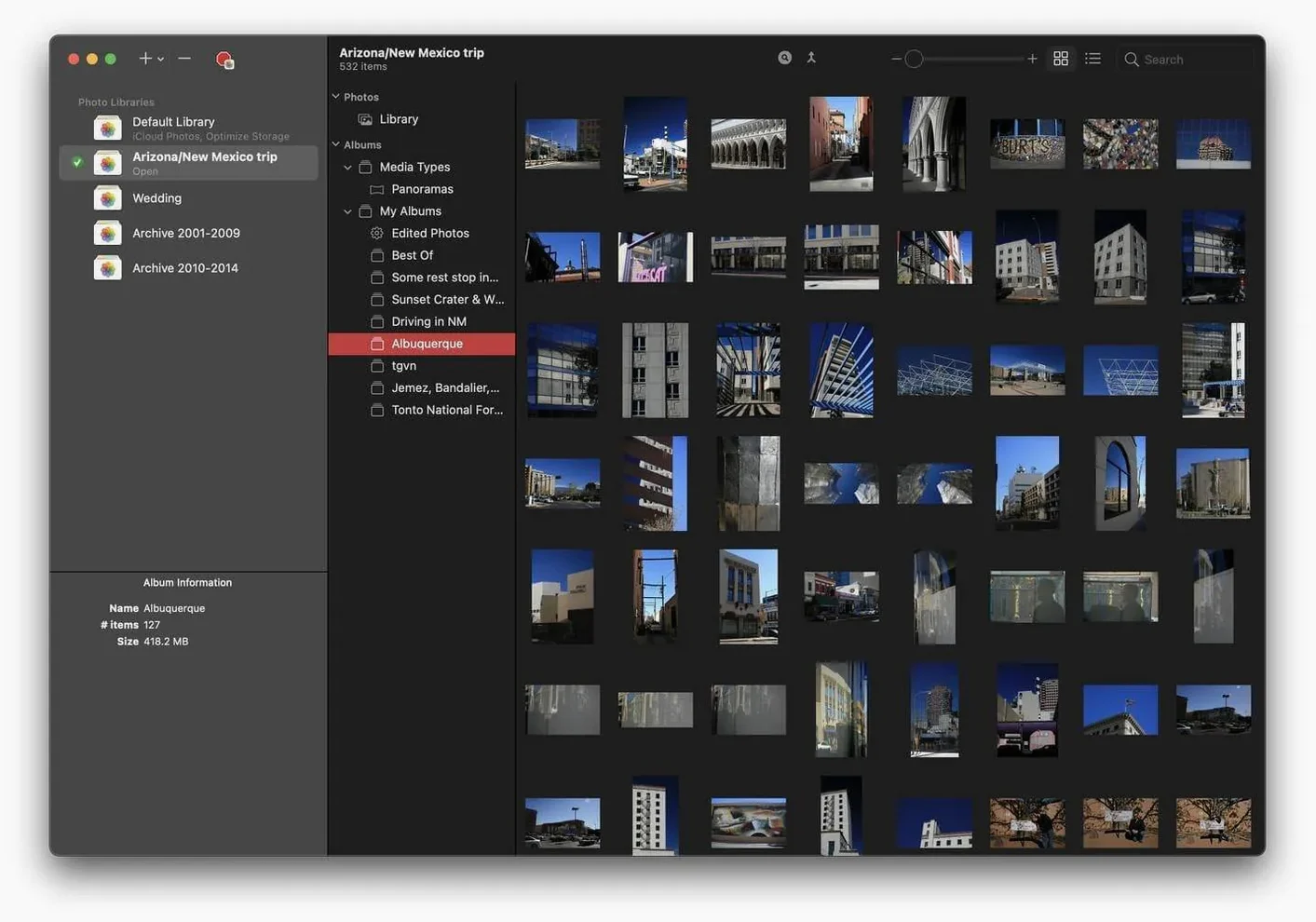
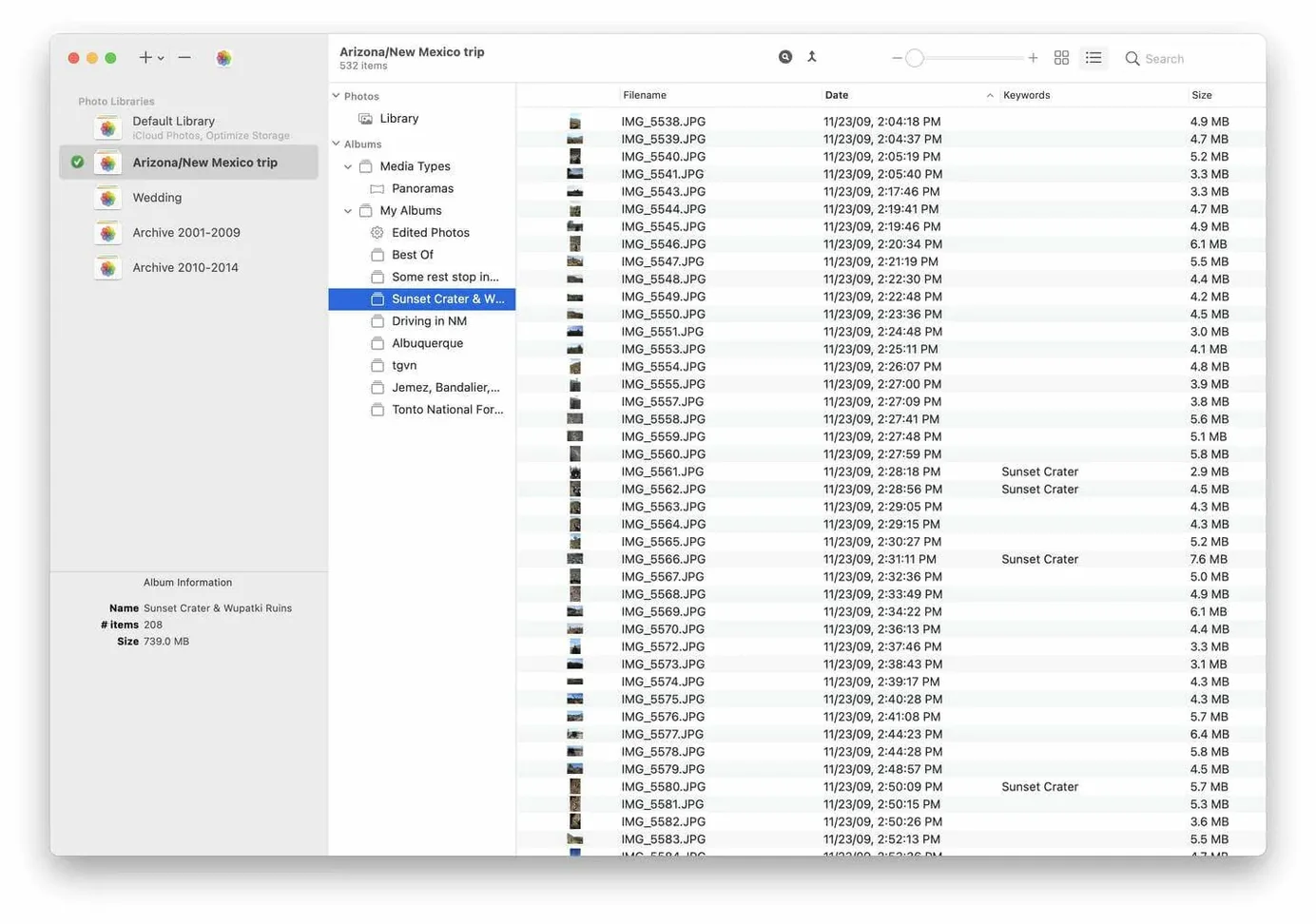
PowerPhotos is a utility that hands you direct control over multiple Photos libraries on one Mac. Rather than juggling a single monolithic library, you can split your collection into separate libraries — by year, project, or family member — and work with them side by side.
Try a duplicate scan across every library
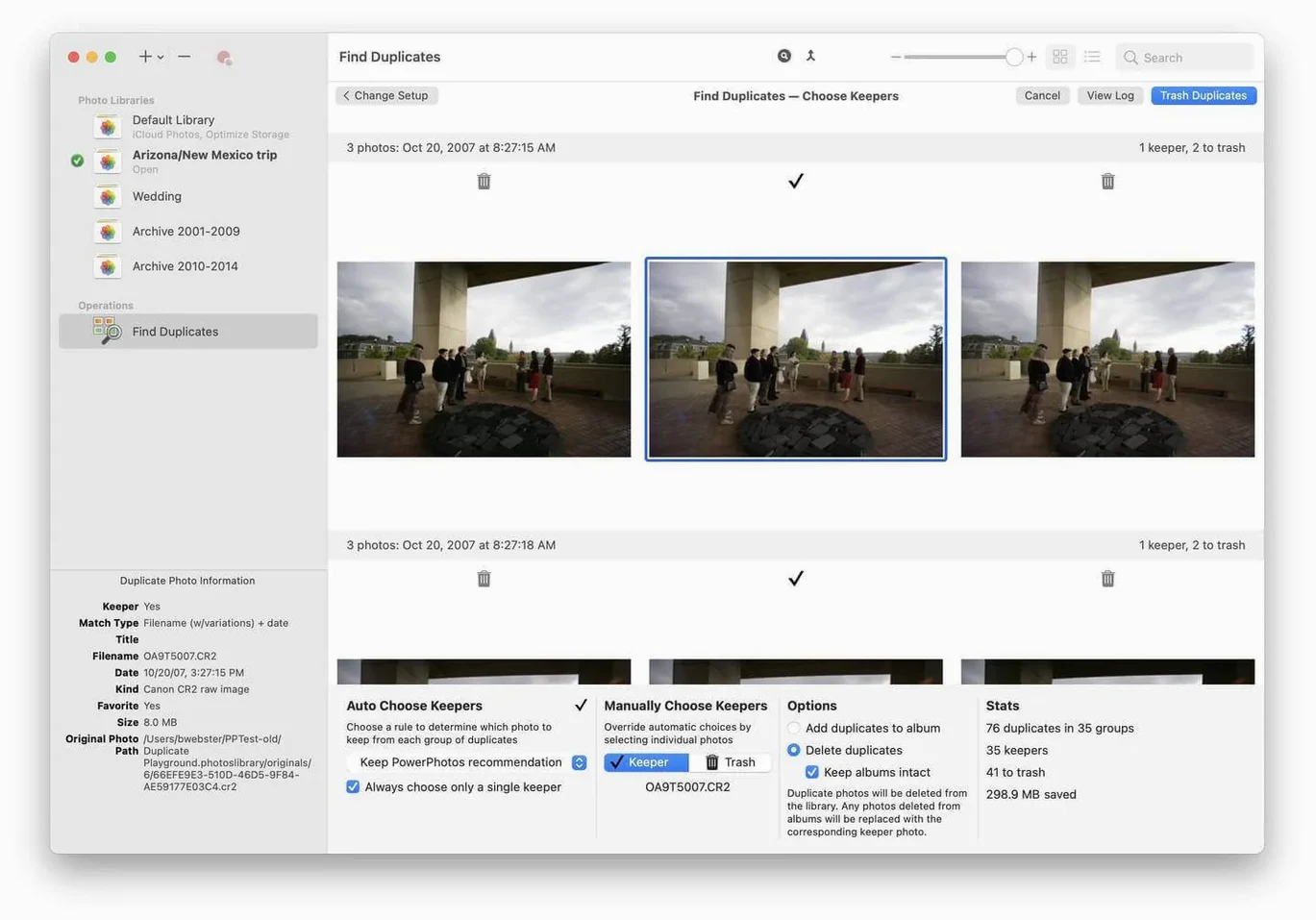
Open PowerPhotos and point it at your main Photos library. From the Library menu, pick the duplicate analysis tool. The app scans image content, not just filenames, and groups visually identical photos even when metadata differs. You can review each match side by side and tell PowerPhotos which copy to keep. The real time-saver is running one scan that reaches across all your libraries at once — no need to open each library inside Photos and run manual checks.
Search everything without switching libraries
Press Command-F with a library selected and type a keyword. PowerPhotos searches that library’s titles, descriptions, dates, and filenames. Switch the scope from the current library to All Libraries and the same query returns matching photos from every library you have added. Double-click any result to open its parent library in Photos at the exact image. This turns a scattered photo setup into something you can actually query.
Jump to a library in Finder from its sidebar shortcut
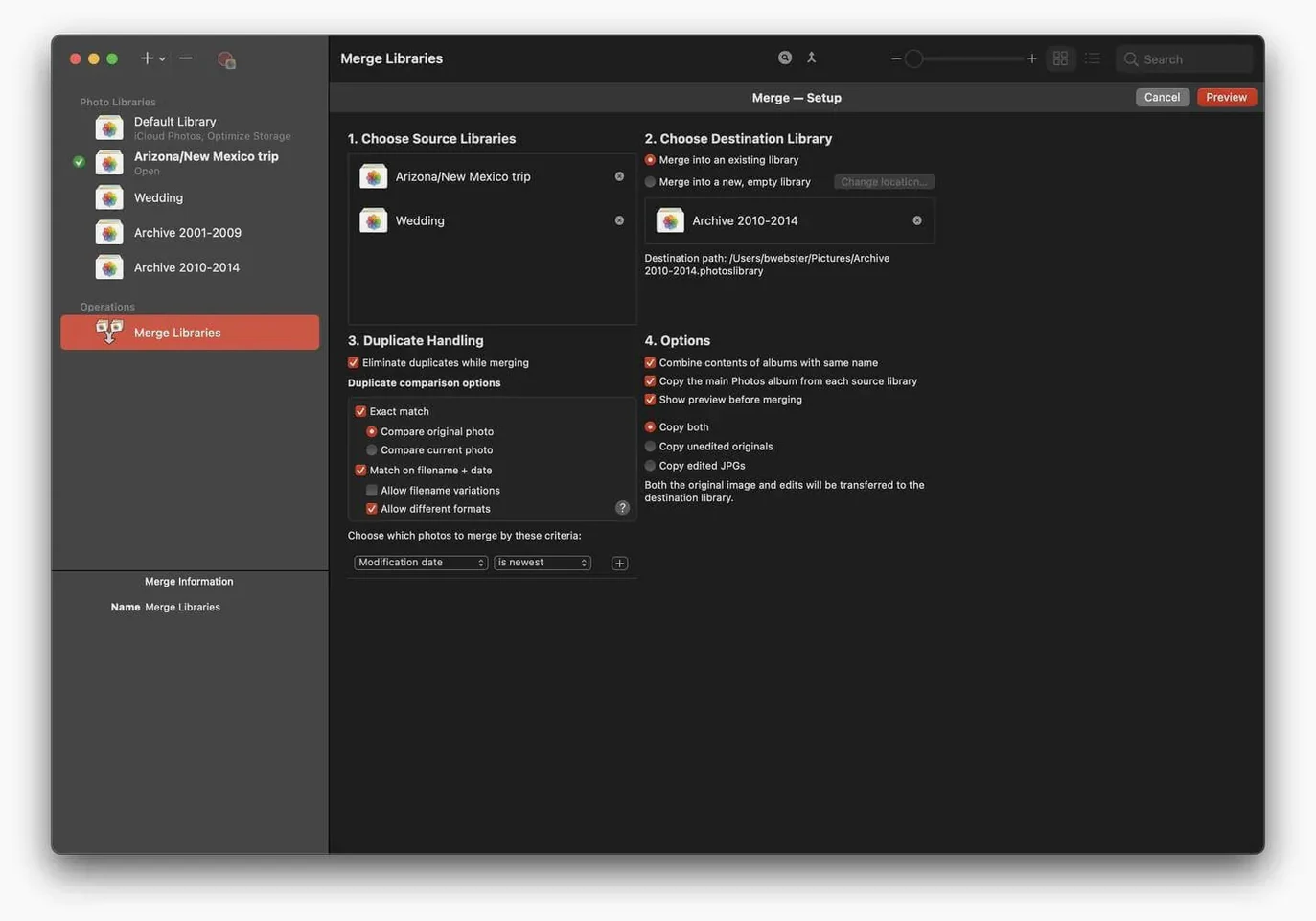
A few shortcuts in PowerPhotos 3.4.8 sit just below the surface. Right-click any library in the sidebar and choose Reveal in Finder to jump straight to the .photoslibrary bundle without digging through ~/Pictures. When you drag a library from Finder into the PowerPhotos window, it adds to the list without an import dialogue — faster than File > Add Library. The merge tool has a keyboard-only path as well: select two libraries, press Command-Option-M, and the merge assistant opens immediately.
The duplicate browser respects a handful of keystrokes. With a pair selected, press the right-arrow key to mark the right-hand photo as the keeper, left-arrow for the left, or Command-Delete to flag both as trash. Holding Option while clicking Move to Trash skips the confirmation prompt. These add up when you work through a scan of 4000 duplicates, and the help menu lists the rest under Keyboard Shortcuts.
Library icons in the sidebar can show a photo count badge. Turn it on in Preferences > General > Show photo count next to library name. It updates after each scan or copy operation, giving you a quick size comparison between libraries without opening Photos.
Workflow: splitting a bloated library into yearly archives
Suppose your System Photo Library holds 260 GB of images spanning 2018 to 2025, and Photos takes 40 seconds to open. Here is one way to break it apart with PowerPhotos.
- Quit Photos, then launch PowerPhotos. Your main library appears automatically because it is the System Photo Library.
- Click the Add Library button and create four empty libraries — name them 2018–2019, 2020–2021, 2022–2023, and 2024–2025. Store them inside ~/Pictures/Archives or an external SSD.
- Select the source library, then open File > Copy Photos. In the filter bar, set the date range to 2018-01-01 through 2019-12-31. Choose the 2018–2019 library as the destination. Tick Copy metadata and Copy albums so folder structures come along. Run the copy.
- Repeat for the remaining date ranges, each time targeting the matching empty library.
- Once all copies finish, run a duplicate scan on each new library with Library > Find Duplicates. A date-range split often surfaces copies that lived unnoticed inside the monolith.
- Back in the source library, verify the copied photos are intact — you can browse any library inline without opening Photos. When you are confident, delete the originals from the main library to reclaim space.
- Finally, open each new library once in Photos so it updates thumbnails and sync metadata with iCloud if you use it. From then on, Photos loads only the library you need, and the 2024–2025 chunk is ready for any powerphotos mac workflow you throw at it.
How PowerPhotos fits with other apps and macOS features
PowerPhotos does not replace Photos; it extends it. Think of it as a file manager that sits one level above the library format — you still use Photos for editing, sharing, and iCloud sync. The two apps can run side by side. Switch libraries from PowerPhotos and Photos picks up the change immediately. This matters when you use an external editor like Pixelmator Pro or Photomator: open the photo from Photos, edit, save, and the new version lands in whichever library PowerPhotos has active.
Spotlight and Finder play a role too. A .photoslibrary bundle is a package, and PowerPhotos respects that — it never touches the internal database directly, only through Apple’s photo library APIs. You can Time Machine your library files as usual, and PowerPhotos includes a command under File > Repair Library that runs Apple’s own repair routine without opening Photos.
For anyone searching for a powerphotos alternative, the field is sparse. Apple’s built-in Photos handles one library at a time. Some people cobble together smart albums and manual exports, but that approach crumbles past two libraries. If you have looked at a PowerPhotos torrent out of curiosity, you already know the gap it fills: macOS offers no native tool for library splitting, merging, or cross-library duplicate detection. Fat Cat Software built exactly that tool, and it plugs into the existing Photos stack without asking you to abandon it.
On the automation side, PowerPhotos has no AppleScript dictionary, but you can trigger library switching with open -a Photos ~/Path/Library.photoslibrary in Terminal or a Shortcuts shell script. Combine that with a Hazel rule that watches a hot folder, and you can build a pipeline where new exports land in a dedicated review library that PowerPhotos keeps separate from your main archive.
Pick the richest album structure as your merge target
- Set one library as the merge destination early. If you plan to consolidate several small libraries, pick the one with the most complete album structure as the target. PowerPhotos merges albums and metadata into it; if you pick an empty library, you lose the organisational work already done.
- Run a duplicate scan on the source library before any merge or copy. It keeps you from propagating dupes into the destination. The scan runs faster on SSD-backed libraries — on an M1 Mac with a 400 GB library on the internal drive, a full content scan finishes in roughly 18–25 minutes depending on photo count.
- Use the built-in browser for quick checks. You can preview images inside PowerPhotos without launching Photos. Double-click a thumbnail in the library browser, and a Quick Look-style preview appears. It loads faster than Photos for spot-checking that the right images copied over.
- Keep the sidebar sorted by size. Click the size column header and you see which libraries consume the most disk space at a glance. This guides your split decisions — start with the heaviest library when trying to reduce iCloud storage use.
- Do not delete the original library until you verify the copy. PowerPhotos shows a completion badge, but open each new library in Photos once and spot-check a few albums, especially smart albums and shared albums. Smart album rules sometimes reference the old library path and need a quick edit to point at the new one.
A powerphotos download from the developer’s site gets you the current 3.4.8 build, and the app settles into a background role quickly — you open it when you need to reorganise, then close it and return to Photos for daily use.
- macOS 14 or later
- Apple Silicon or Intel 64-bit processor
Questions on file
What can PowerPhotos do that the built-in Photos app cannot?
PowerPhotos can search across multiple Photos libraries at once, run a duplicate scan that checks image content across all libraries, and copy or move albums between libraries without manual export and re-import.
Sign in · Create an account to add a field note.
No field notes yet. A measurement, a version, a machine — they appear after moderation.