
Photo
PhotoScape X Pro 4.3
PhotoUpdated
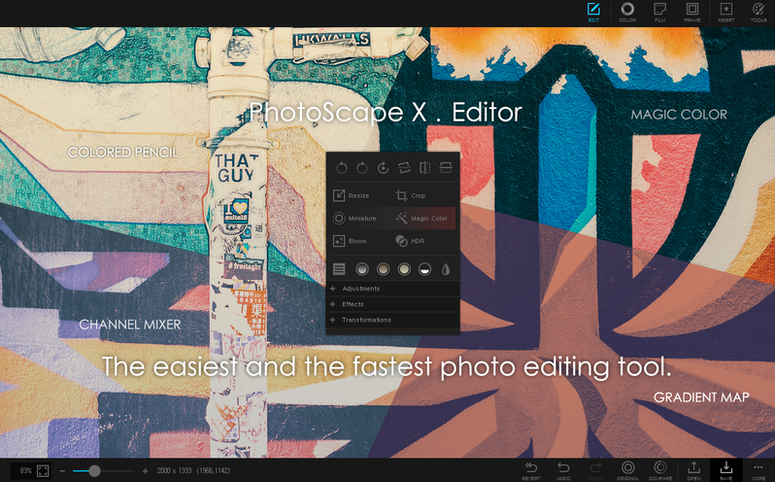
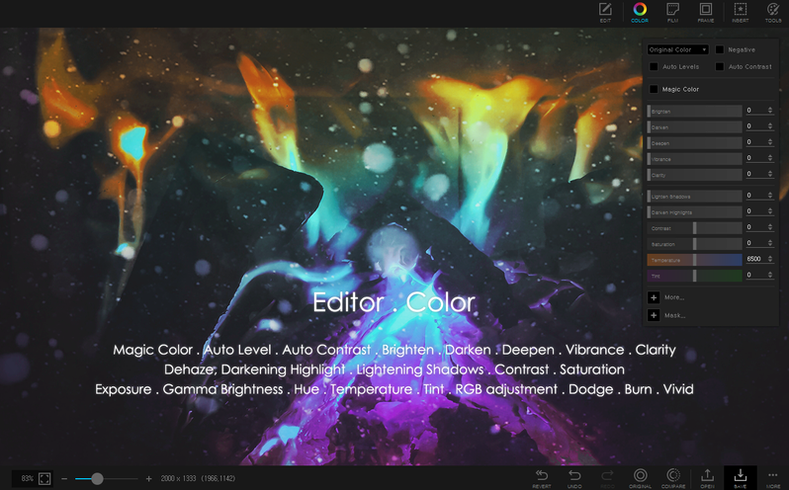
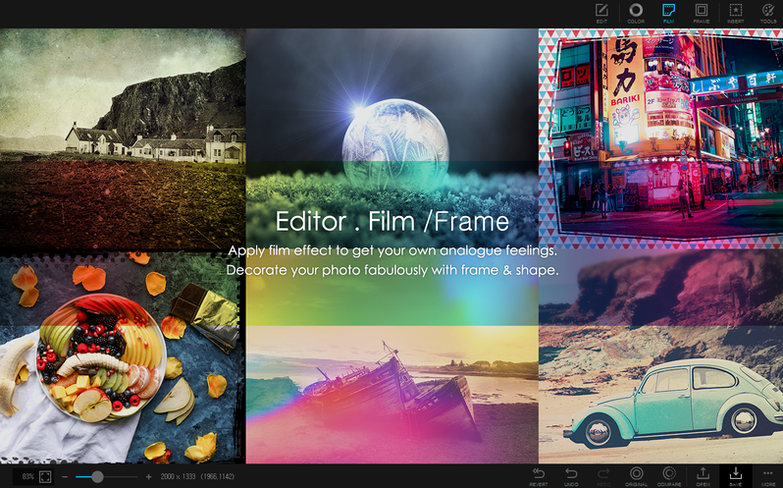
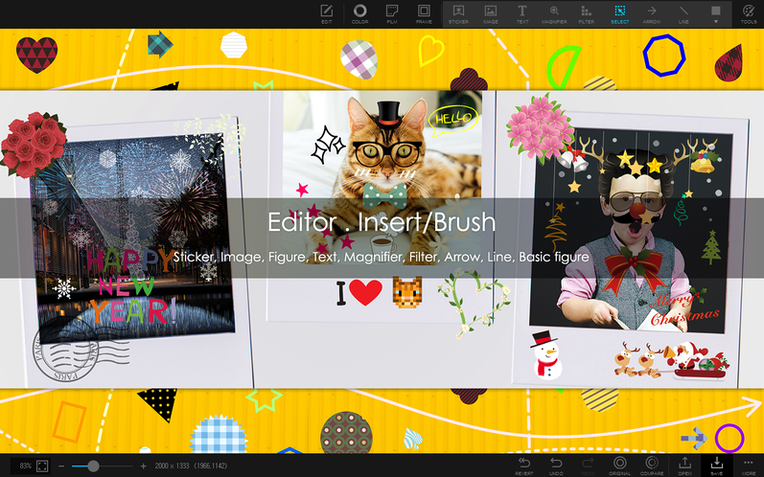
| Requirement | On file |
|---|---|
| macOS | macOS 13 or later |
| CPU | Apple Silicon |
| Download | 452 MB |
The Clone Stamp tool picks up a brush profile better suited to texture work than quick dust removal, and that small design choice says a lot about where this app sits in a Mac user's toolkit. It is not a Lightroom replacement, nor a slim utility. It fills the gap between the two.
Batch resizing and format conversion
When Finder or Preview cannot handle a folder of mixed RAW and JPEG exports at the sizes a client needs, the batch panel here does. Rename, resize, and convert in one pass without opening a second app.
Multi-photo layouts without a desktop publisher
The Combine tool stitches photos vertically or horizontally into a single image in a few clicks. It is faster than building a canvas in Affinity or Pixelmator Pro when all you need is a before-and-after strip for documentation.
Focus stacking when the macro lens wins
The HDR merge and focus stacking tools produce a blended result without round-tripping through the command line or a separate specialist utility, keeping the workflow on one screen.
Fix a Stuck Loupe After Theme Switch
One recurring hiccup: the loupe view in the browser stops responding to the mouse wheel after switching between Light and Dark mode. Toggling the sidebar off and on again—View > Hide Sidebar then View > Show Sidebar—restores it. This appears to be a redraw issue on Apple Silicon builds, not a broken preference file.
Another point of friction is the Magic Eraser. It works best on high-contrast edges. On soft gradients or wispy hair against a busy background, the brush can leave a translucent halo. The workaround is to drop the tolerance slider to 8–12% and make two passes: a rough cut with the lasso, then a cleanup pass with the eraser at a small brush size. Time-consuming, but the result holds up at 100% zoom.
Batch rename operations occasionally stall on folders with more than 2 000 images. Splitting the job into chunks of 500–800 files avoids the progress bar freeze. The underlying issue—likely a memory buffer cap in the batch engine—has not changed in 4.3, so the chunking habit is worth keeping.
HEIC files from an iPhone 15 Pro open correctly in the editor, but saving them back as HEIC strips the depth map. For archival work, export to TIFF or PNG instead; the metadata viewer confirms what survives the round-trip.
From 340 Raw Shots to Web JPEGs in One Morning
Imagine a Tuesday morning. A folder of 340 product shots lands on the desktop—mixed JPEG and Canon CR3 files, no consistent naming. The brief: sort the keepers, fix white balance on the tungsten-lit shots, output 1200-pixel-wide JPEGs for the web shop, and build three before-and-after combos for the client email.
Step 1: Open the folder from the Browser panel. Thumbnails render in about two seconds for the CR3 files on an Apple Silicon Mac. Tap F on the usable frames to flag them, then filter by Flagged from the sort bar. The floating loupe—activated with a long press on any thumbnail—lets you check critical focus without leaving the grid.
Step 2: Double-click the first flagged shot. The Editor opens with the photo full-frame. White balance is off—tungsten cast from the warehouse lighting. The Colour tab's temperature slider snaps to a reasonable correction around 3 200 K, but pulling it manually to 3 050 K with a +4 tint shift matches the product colours to the swatch card on the desk. Apply the same adjustment to the remaining flagged shots via Edit > Copy Adjustments and Edit > Paste Adjustments—no need to save a preset first.
Step 3: Select all flagged images in the Browser and open the Batch panel. Set format to JPEG, quality 92, width 1 200 pixels with aspect ratio locked, and a rename pattern of product_###. Hit Start. The batch finishes in roughly 45 seconds.
Step 4: Switch to the Combine tool. Drag two shots of the shelf display—one ambient, one with the fill light—into the vertical layout. Adjust the gap to 4 pixels, background to solid white. Export as PNG. Repeat for the other two pairs. The whole session, from import to email attachment, clocks under 12 minutes without launching a second application.
Sample Any On-Screen Color with the Eyedropper
The colour picker tool is not confined to the editor canvas. With the picker active, moving the cursor outside the app window samples any pixel on the screen—useful for matching a brand colour from a PDF open in Preview without taking a screenshot first. Hold Option while sampling and the hex value copies to the clipboard automatically.
In the GIF panel, the frame delay field accepts decimal values. Setting it to 0.07 seconds produces a smoother loop than the default 0.1 for footage extracted at 15 fps. The difference is subtle but visible on scrolling text.
A right-click on any thumbnail in the Browser reveals a Split Photo shortcut that pre-loads the image into the Split tool with the current selection grid. No need to dig through the Tools menu.
The editor's Liquify tool supports pressure-sensitive tablets out of the box. Brush size and strength respond to pen pressure on a Wacom Intuos or a Sidecar-connected iPad with Apple Pencil, though tilt is ignored. For portrait retouching, setting the push brush to size 120 and strength 18 gives enough control to reshape a jawline without visible warping at print resolution.
Send Straight to Combine via Finder’s Share Menu
Because the app is Apple Silicon-native, it shows up as a share destination in Finder's Share menu. Selecting six images in a folder and choosing PhotoScape X Pro from the share sheet opens them directly in the Combine tool if the app is already running. This bypasses the Browser entirely for quick assembly jobs.
The metadata viewer reads EXIF and IPTC fields that Apple Photos hides from its Info panel—lens model, serial number, and flash firing status among them. For photographers who catalogue in Eagle or DigiKam, dragging a file from the Browser into those apps preserves the rating and colour label set inside PhotoScape X Pro, as both are written to XMP sidecar data on export.
Screenshots captured with the built-in screen capture tool land in a default folder, but changing that folder to a synced directory—an iCloud Drive folder or a Dropbox-managed path—makes the captures available on other devices within seconds. The tool also respects macOS Stage Manager's z-order; it captures the active window even when it is tucked in a side stack.
For users running Shortcuts on macOS 14 Sonoma, the app's batch rename function is not directly scriptable, but the workaround is clean: build a Shortcut that copies files to a watched folder, then use the app's Batch > Watch Folder option to process incoming files automatically. Rename patterns apply on arrival, and the processed images can be routed to a separate output folder. It is a one-way pipeline, not a full automation, but it handles repetitive daily tasks without touching Automator.
- Stability — a bug fix in the 4.3 build
- macOS 13 Ventura or later
- Apple Silicon
Questions on file
Does PhotoScape X Pro run natively on Apple Silicon Macs?
Yes, version 4.3 is built for ARM architecture and requires macOS 13 Ventura or later, so it runs natively on M-series chips.
Sign in · Create an account to add a field note.
No field notes yet. A measurement, a version, a machine — they appear after moderation.