VST Plugins
Devious Machines Duck 2 2.0.30
VST PluginsUpdated
| Requirement | On file |
|---|---|
| macOS | macOS 11 or later |
| CPU | Apple Silicon, Intel 64-bit |
| Download | 87 MB |
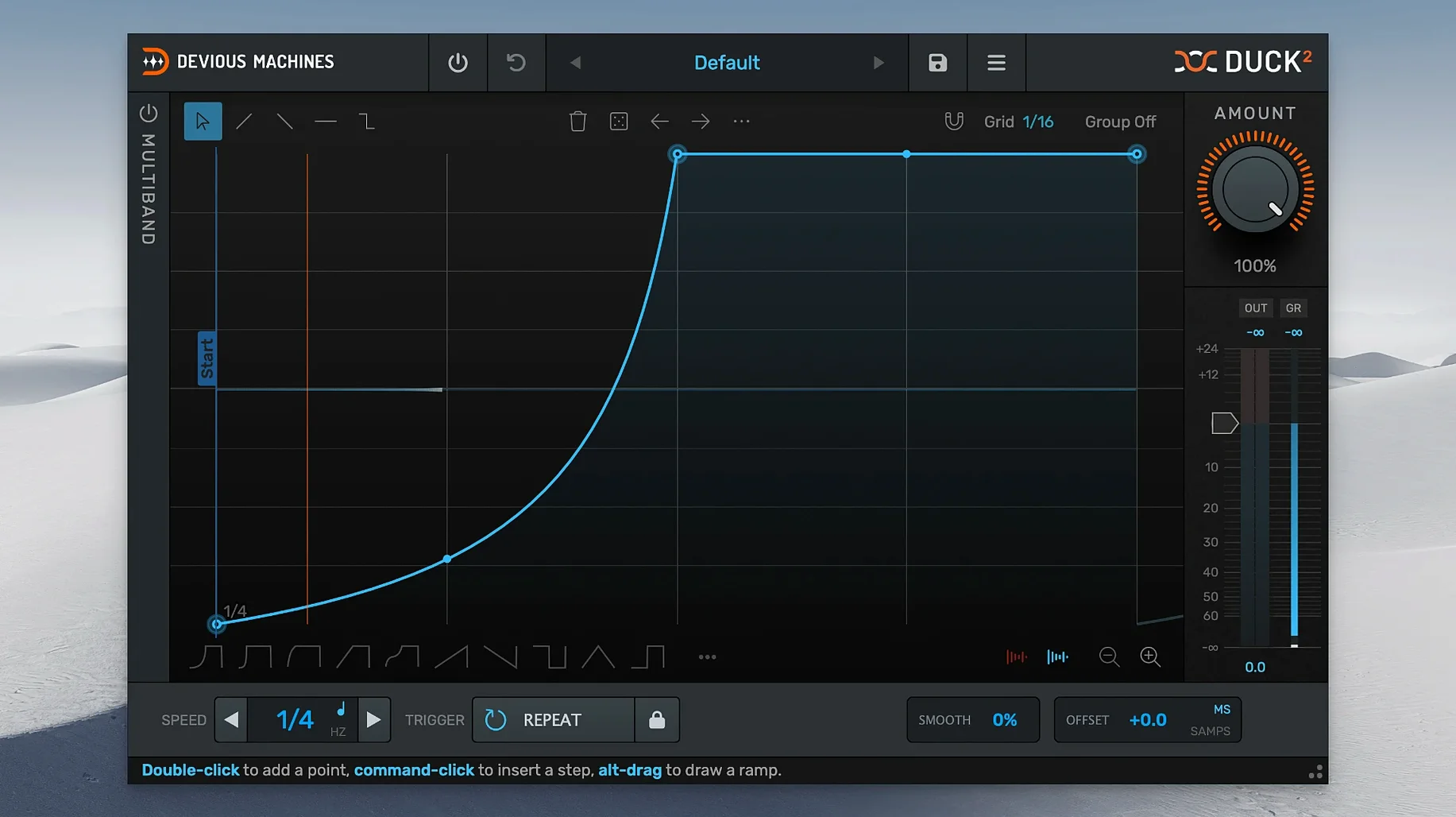
Where a standard compressor’s sidechain gives you a single broadband duck, Duck 2 splits the signal into three adjustable bands. Each band can follow its own envelope, so the low end can react with a different timing and depth than the high-mids, which changes how the effect sits in a dense mix without losing the body of the track.
The trigger section includes a threshold meter and LED, plus MIDI velocity control over ducking depth or overall volume. The offset function works in milliseconds or samples, combining lookahead and delay in one freely adjustable control. When precision matters, switching the crossover slope to 48 dB per octave keeps the bands sharply separated.
Envelope shaping goes beyond the sidechain input. You can trace an envelope from an imported audio file—useful when the kick you are ducking against isn’t in the project itself. The LFO runs in an unsynced Hz mode for free-running modulation, and every move includes undo and redo, which makes refining a shape feel less like guesswork.
Push the Crossover Slope to 48 dB/Oct for Tighter Splits
After loading an instance, the default crossover slope sits at 12 dB per octave. For anything where you want a clear split between bands—kick-against-bass situations in particular—push it to 48 dB per octave straight away. The steeper slope means less bleed between the low band and the mid band, so the fundamental of the bass stays untouched while the kick triggers ducking on the higher partials. It costs a little more CPU, but the linear‑phase filtering already keeps artefacts low.
The offset control defaults to a small lookahead value in milliseconds. Switch the display to samples mode at least once while you work. Seeing the offset in samples rather than milliseconds gives a direct read on how far ahead the plugin is looking relative to your buffer size, which matters when you are aligning the duck to a hi‑hat or a percussion transient that spans only a handful of samples. A value of 88–132 samples often cleans up the transient without softening the attack feel on faster material.
MIDI velocity control is off by default. If your sidechain source is a MIDI track driving a sampler or drum synth, turn it on and set it to control ducking depth. The difference between a velocity‑96 kick and a velocity‑127 kick becomes a difference in how much the pad breathes, which adds a human timing variation that a flat envelope does not give you.
Workflow: Multiband Ducking Against a Rival Kick
Imagine a synth‑wave track where the main bass sits as a held sawtooth, and the kick is a short, sub‑heavy sample from a different project. You exported the kick as audio earlier. The bassline loses weight every time the compressor ducks the whole spectrum, and you want the sub to stay full while the high‑mid rasp drops out.
Insert Duck 2 on the bass channel. Open the trace function and import the isolated kick file. The plugin captures an amplitude envelope from that audio and maps it to the ducking shape—no live sidechain routing needed. Switch to three‑band mode and unlink the envelopes so each band can receive its own shape. For the low band, reduce the depth to around 3–4 dB and set a fast release of roughly 20 ms. The sub dips only slightly, just enough to prevent the kick’s transient from combining into a peak. On the mid and high bands, keep the depth at 8–10 dB with a slightly longer hold before the release, so the saw’s buzzier harmonics duck audibly and return with a swell that follows the kick’s tail.
Set the crossover points at 120 Hz and 800 Hz. At 48 dB per octave, the three bands behave like separate processors. The kick sits in the sub band’s territory without triggering the mid band, and the pluck of the attack passes through cleanly. Toggle the band‑specific bypass buttons while the loop plays; you will hear how much low end you keep compared to a full‑band duck. Add a small randomise amount to the mid‑band envelope—2–3%—so the shape shifts subtly on each trigger, keeping the movement from sounding locked to a grid.
Undo and Redo Cover Every Curve Drag and Randomise
The undo and redo stack is deeper than you expect. Dragging a curve point too far, randomising an envelope, or adjusting a crossover frequency all count as discrete steps. Cmd‑Z and Cmd‑Shift‑Z step cleanly back through the last twenty or so edits, which turns envelope shaping into a low‑risk sketching process rather than a careful placement exercise.
Right‑clicking any band’s solo button isolates that band without affecting the others’ settings. It works at the output stage, so what you hear is the band’s contribution to the final mix—useful when you are setting crossover points and want to confirm exactly where the split lands on a particular sound.
The LFO’s unsynced Hz mode accepts values down to 0.05 Hz in the text entry field, even though the knob’s lowest stop is 0.1 Hz. Typing a lower number directly gives you a cycle that spans twenty seconds, which works as a slow, evolving volume swell rather than a rhythmic pump. Pair it with a moderate randomise on the envelope and you get a pad that breathes almost imperceptibly, never repeating the exact same contour twice.
If you hold Shift while adjusting the offset knob in samples mode, the increment snaps to multiples of the current buffer size. This small touch makes it trivial to align lookahead to a round number of buffers, which can reduce CPU spikes when several instances run on adjacent tracks with identical offset values.
- Multiband section — 3 bands with separate envelopes
- Envelope tracing — import an audio file or use sidechain input
- Interface — freely resizable GUI
- macOS 11 or later
- 64-bit host (ARM and x86 architectures supported)
- English interface
Sign in · Create an account to add a field note.
No field notes yet. A measurement, a version, a machine — they appear after moderation.